

Applying for leave
Apply for leave, change or withdraw a request, track its approval, and understand how your balance is worked out.
What you can do here
- Apply for any leave type you're entitled to, with your remaining balance shown as you choose.
- Take a full day, a half day, or a mix across a longer stretch.
- Attach a supporting document where the leave type asks for one.
- Name extra people to be notified, beyond your approver.
- Apply on someone else's behalf, if your role allows it.
- Change a request while it's still pending, and withdraw one you no longer need — including an approved one.
- Track approval, and read the comments your approver left.
- See your balance per leave type at a glance.
A quick tour of Leave Requests
- Open People in the sidebar on the left, then click Leave.
- Here you'll see all of your leave requests, each with its current status.
- Click Apply for Leave in the top-right corner to submit a new request.
What the page shows
Leave Balance runs across the top — every leave type combined, as N available of N total. Each type has its own coloured segment; hover one to see that type's name and what's left. Unpaid or unlimited leave has no colour, since there's no balance to run down.
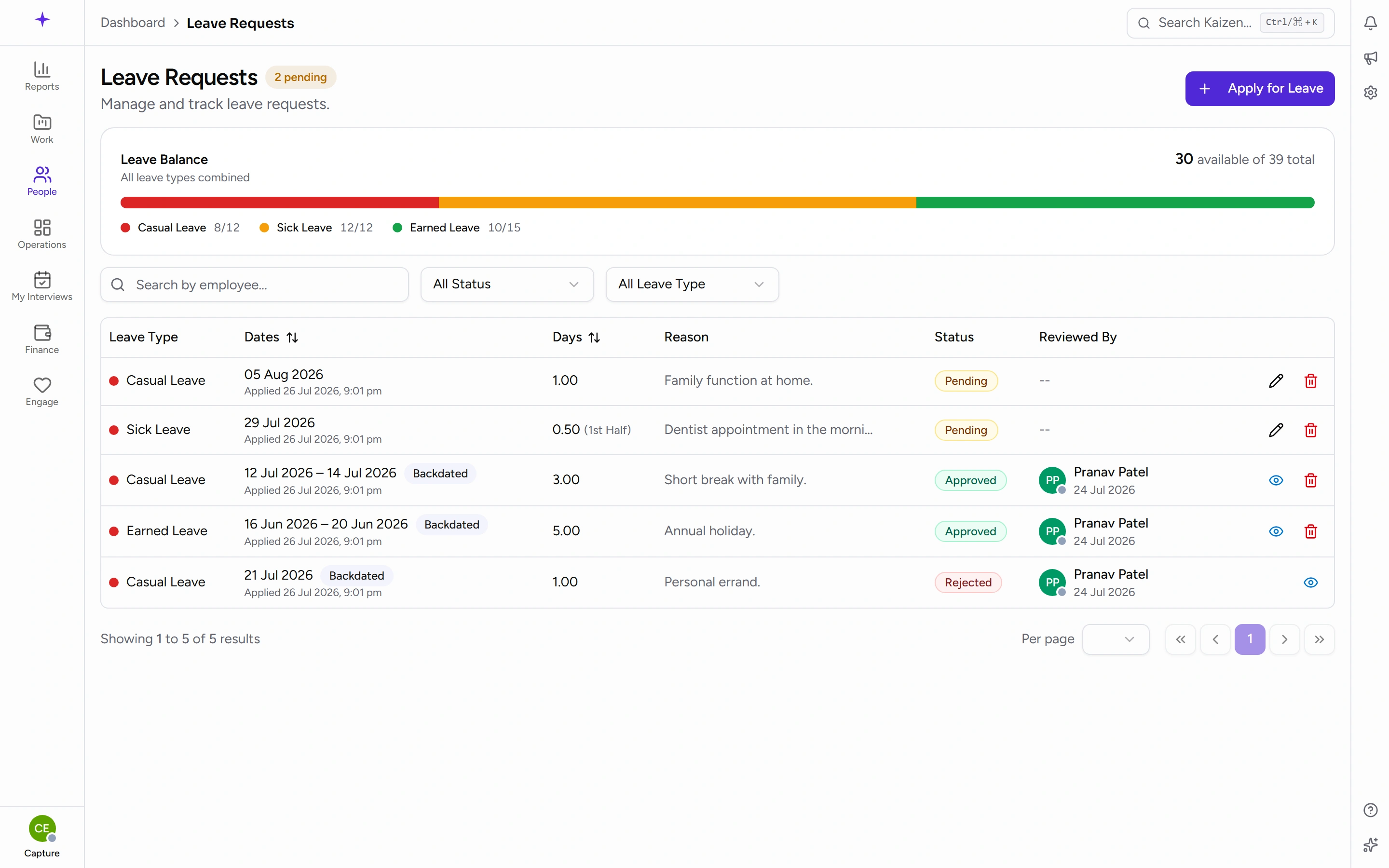
Below it, each request is a row showing its Leave Type, Dates, Days, Reason, Status, and Reviewed By. A few details worth knowing:
- The Dates cell also tells you when you applied, and carries a Backdated badge if the leave started before the day you asked for it.
- Days notes 1st Half or 2nd Half for a half-day.
- Long reasons are trimmed — hover to read the whole thing.
- Status is Pending, Approved, or Rejected.
If you approve other people's leave, a Scope switch appears with Mine, Team, and All, an extra Employee column, and a pending count beside the heading.
Common tasks
Apply for leave
- Go to People → Leave in the left sidebar.
- Click Apply for Leave in the top-right corner.
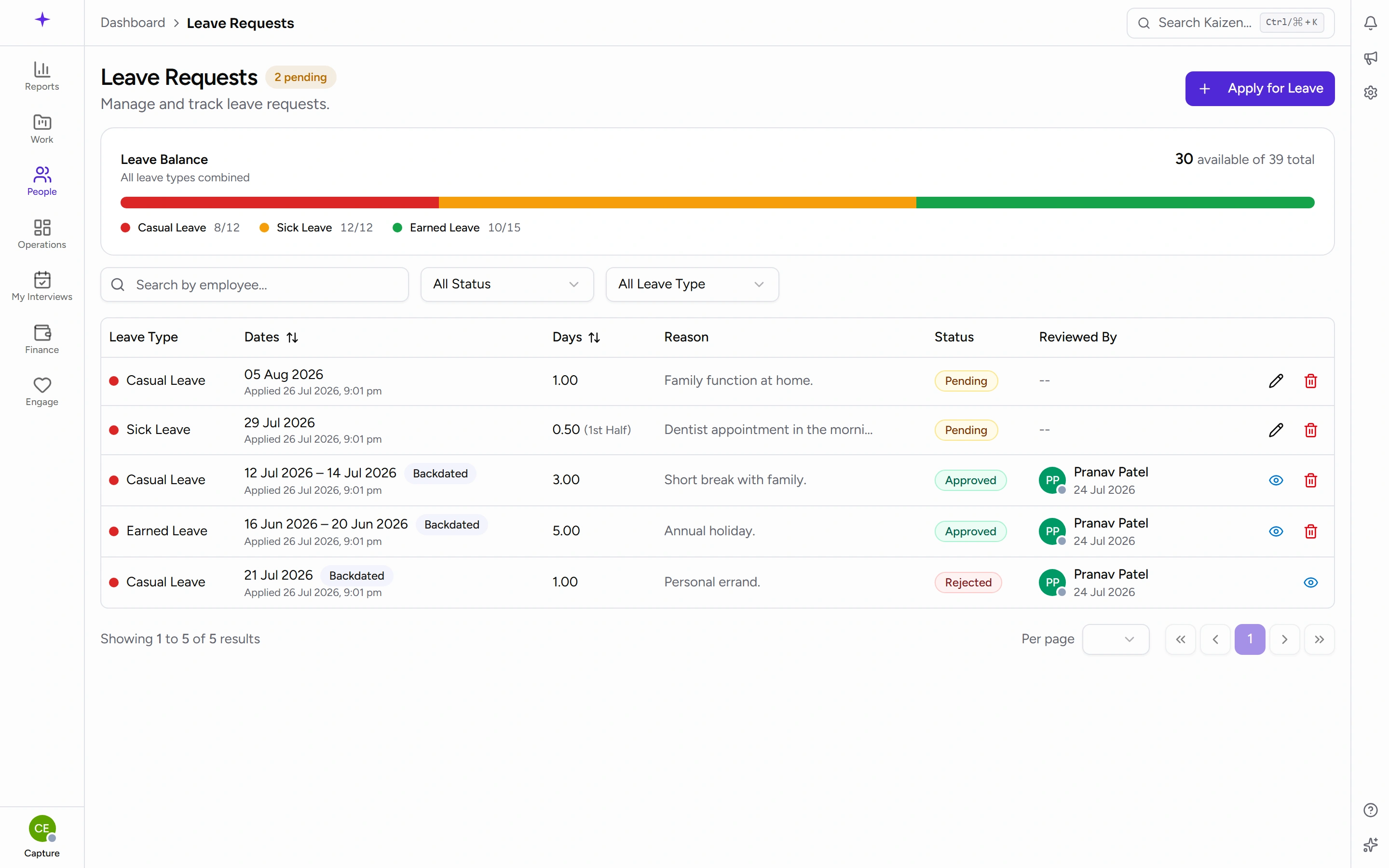
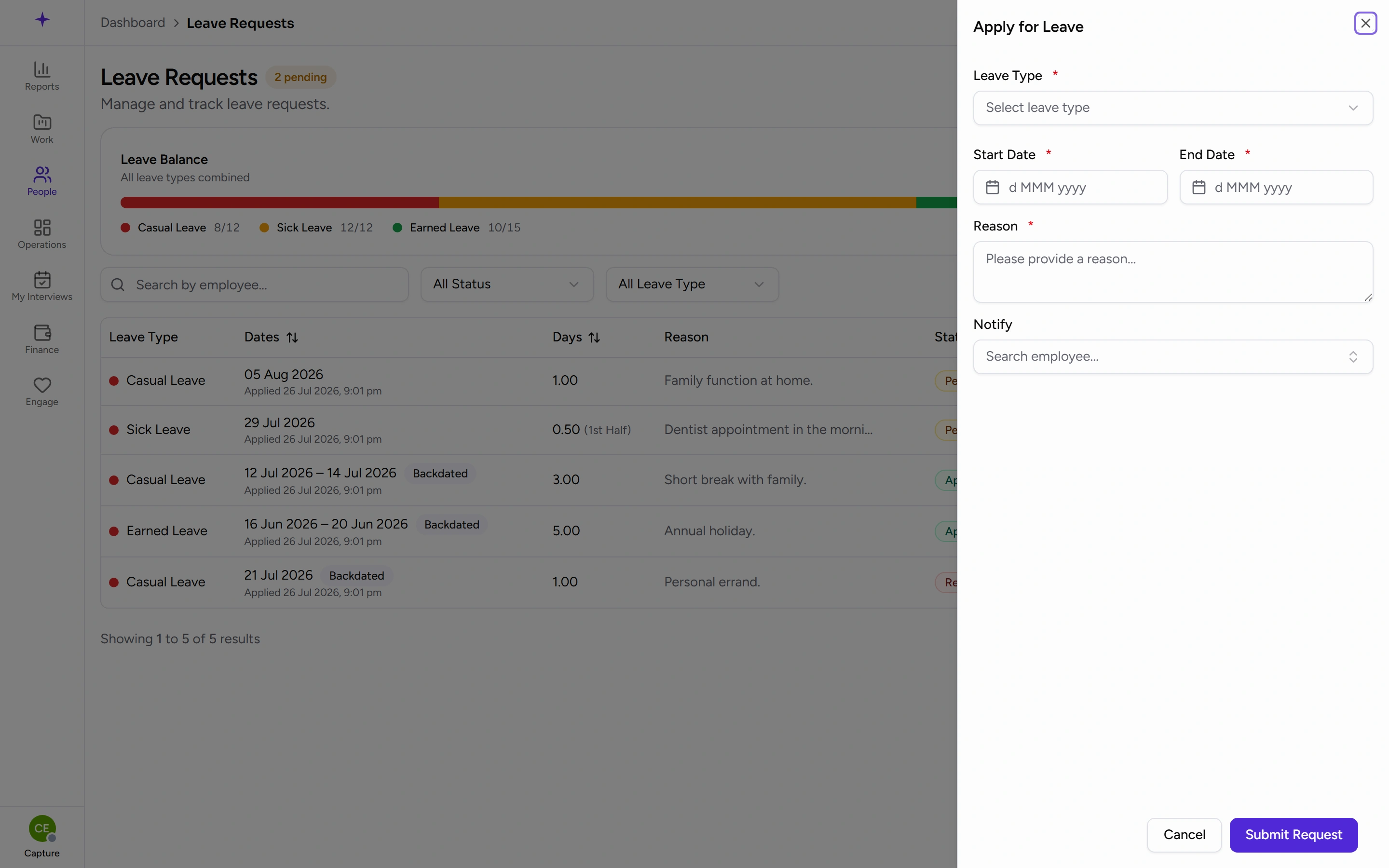
ScreenshotApply for Leave button - Choose the Leave Type. The dropdown shows what you have left of each — for example Casual Leave - 6.00 days — so you can decide before committing.
- Pick the Start Date and End Date. For a single day, set both to the same date.
- Leave Duration Type on Full days, or switch to Half / Custom to take part of a day. Then choose First Half or Second Half. If the toggle is greyed out, that leave type doesn't allow half days.
- Check the Requesting N days line — it's worked out live, and it's what will come off your balance.
- Enter a Reason. This is required, and your approver reads it.
- If the leave type needs proof, a Supporting Document box appears — click to upload a PDF, image, or DOC up to 5 MB.
- Under Notify, add anyone else who should hear about it — a project lead, say. Your approver is notified regardless.
- Click Submit Request.
Apply on someone else's behalf
If your role allows it, a Filing for box appears at the top of the form. It reads Myself by default — pick a person to file for them instead. Everything else works the same, and the days come off their balance.
Check the status of a request
- Open People → Leave.
- Each row shows Pending, Approved, or Rejected, and who reviewed it under Reviewed By.
- Click the eye icon on a decided request for the read-only Leave Request Details panel — the type, dates, duration, reason, and any document you attached.
To read the comment your approver left, open the notification you were sent when the request was reviewed. That links to the request's own full page, which is where Comments appears — the list and the panel don't show it.
Change a request you've already submitted
While a request is still Pending, click the pencil on its row. The form reopens as Edit Leave Request — change the type, the dates, the duration, or the reason, then click Update Leave.
Once a request has been approved or rejected, the pencil becomes an eye: the request is a record at that point and can only be viewed. If an approved leave is wrong, withdraw it and apply again.
Withdraw a request you no longer need
Click the bin on your own request. What happens depends on where it is:
- Pending — you're asked Cancel this leave request? Confirm with Cancel Leave, or keep it with Keep.
- Approved — the prompt is Cancel Approved Leave, and warns that it will cancel the leave and refund your balance. Your approver is notified.
Either way the days come straight back to your balance — there's no second approval to wait for. The bin only appears on your own requests, and only while they're pending or approved.
Come back early from a longer leave
You can't shorten your own approved leave. Ask HR or your administrator — on the request's detail page they have Adjust end date, which shortens the leave and refunds the unused days to your balance.
Find an old request
Use the filters above the list: Status, Leave Type, and — if you can see other people's — Scope and Employee. Search by employee... matches on names. Dates and Days can both be sorted by clicking the column heading.
How your balance is worked out
- Balances are per leave type, per financial year — your company's, which may not start in January. Whoever administers Kaizen sets the month it starts in, so if your balance resets at a point in the year that surprises you, that is the setting to look at rather than a fault.
- Weekends and company holidays inside your dates aren't counted, so a Friday-to-Monday leave costs two days, not four.
- Optional holidays are different — they're treated as ordinary working days. Taking one off uses a leave day.
- A half day counts as 0.5.
- Pending requests are already set aside from what's shown as available, so you can't accidentally commit the same days twice.
- Unpaid and unlimited leave types have no balance to track.
Good to know
- Applying for a date in the past is allowed, and the request is flagged Backdated so your approver can see it. If the absence has already happened and wasn't leave, attendance regularisation may be the better route.
- Your approver is decided by your reporting line, not chosen by you.
- A rejected request can't be edited or reused. Read the reviewer's comment from your notification, then apply again with the dates or type corrected.