

Notifications
See activity that involves you, jump straight to it, and control exactly which notifications reach you in-app and by email.
What you can do here
- See activity that involves you — a task assigned to you, a leave request reviewed, a payslip ready, an invoice approved, and more.
- Open a quick panel from anywhere, without leaving the page you're on.
- Jump straight to whatever a notification is about in one click.
- Filter your history by read state and by type of activity.
- Decide, per notification type, whether it reaches you in-app, by email, both, or not at all.
Common tasks
Open your notifications
- Look for the bell in the vertical strip along the right edge of the screen — a small count shows how many are unread.
- Click it to slide open the Notifications panel. Items are grouped by when they arrived: Today, Yesterday, This Week, and Older.
- New ones arrive on their own; you don't need to refresh.
Open the thing a notification is about
Click the row. It's marked as read and takes you straight there — the task, the leave request, the payslip, whatever it refers to.
Mark everything as read
Open the panel from the bell and click Mark all read at the top. This lives in the panel — the full list page doesn't have it.
See your full history
- Click View all notifications at the bottom of the panel.
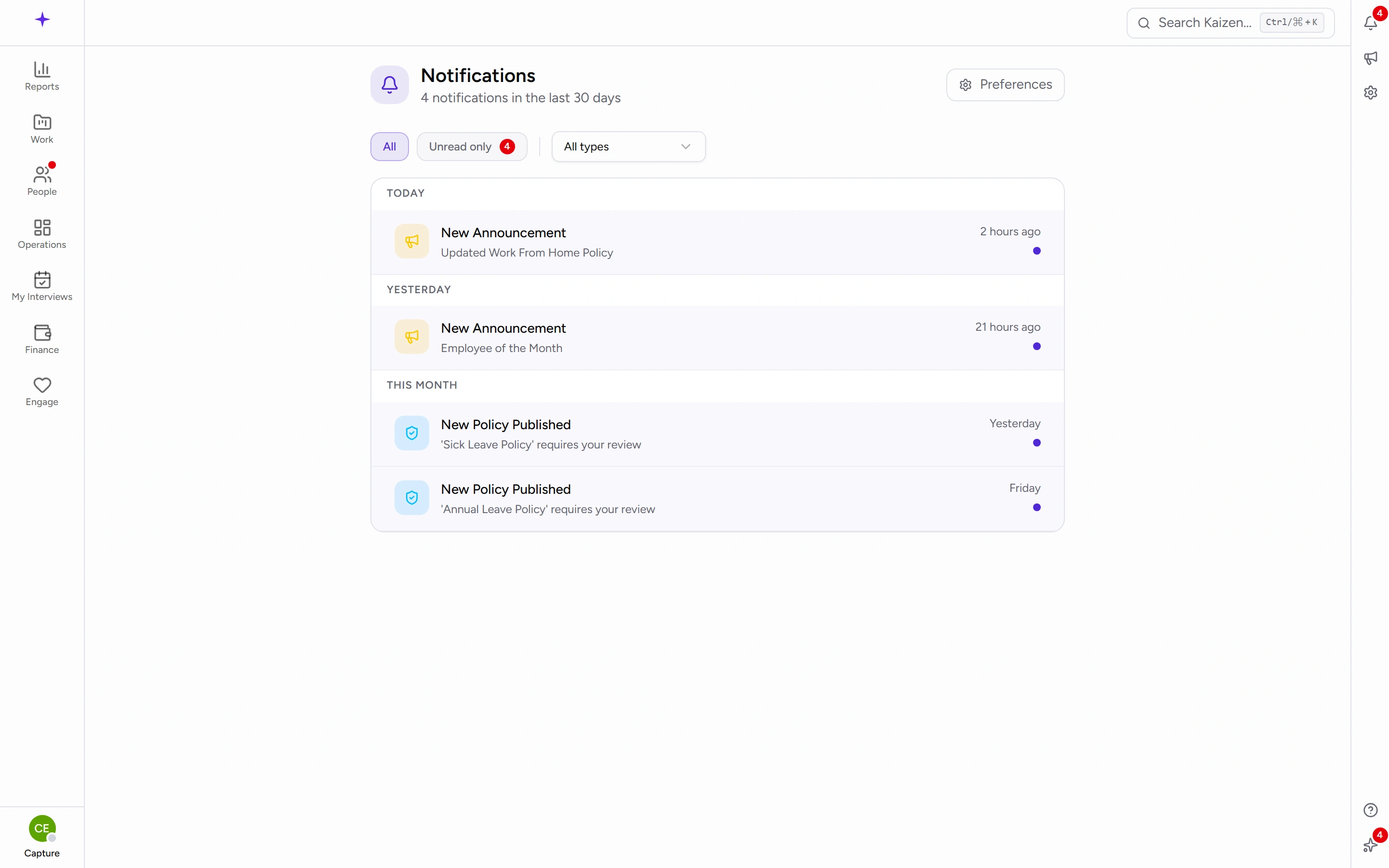
- Switch between everything and Unread only, and pick a category from All types to focus on one kind of activity.
- Clear filters goes back to everything.
The page holds the last 30 days, plus anything still unread however old it is.
Choosing what reaches you
Open Notification Preferences from the notifications page. Every notification type has two independent switches — In-App and Email — so you can keep something in the bell without it also landing in your inbox.
There are three levels of control, and they stack:
- All Notifications at the top toggles everything at once, per channel.
- Each category has its own pair of switches, for turning off a whole area.
- Each individual type has its own pair, with a line explaining what it covers.
Changes save as you make them. There's no Save button — flip a switch and it's stored.
Good to know
- Turning a type off stops the notification; it doesn't stop the thing happening. Your leave request is still approved, you just won't be told.
- A to-do mentions you is the type that fires when a colleague names you on one of their personal to-dos. Switching it off doesn't hide the to-do — it still appears under Involving me on your dashboard; you just aren't told when a new one arrives.
- If a colleague says they notified you and nothing arrived, check that type in Notification Preferences — the most common cause is that its channel is switched off.
- The bell count is unread items only, so it drops as you read them rather than as they age.