

Logging your time
Record hours and minutes against your projects day by day — and understand the lock that closes a day once you save it.
What you can do here
- Log hours and minutes against each project you work on, one day at a time.
- Split a project's time across several entries, each against a different task.
- Mark each entry billable or non-billable.
- Add a project you're not formally on, and pin the ones you use every day to the top.
- See your week's total against your target, split by billable and non-billable.
- Understand why a day has closed, ask for it to be reopened, and track that request.
- Change or remove an entry — while the day is still open.
Where to find it
Time Logs in the sidebar opens My Timesheet: your week, with the totals and every entry in it. Log Time takes you to the daily screen, where hours are actually entered.
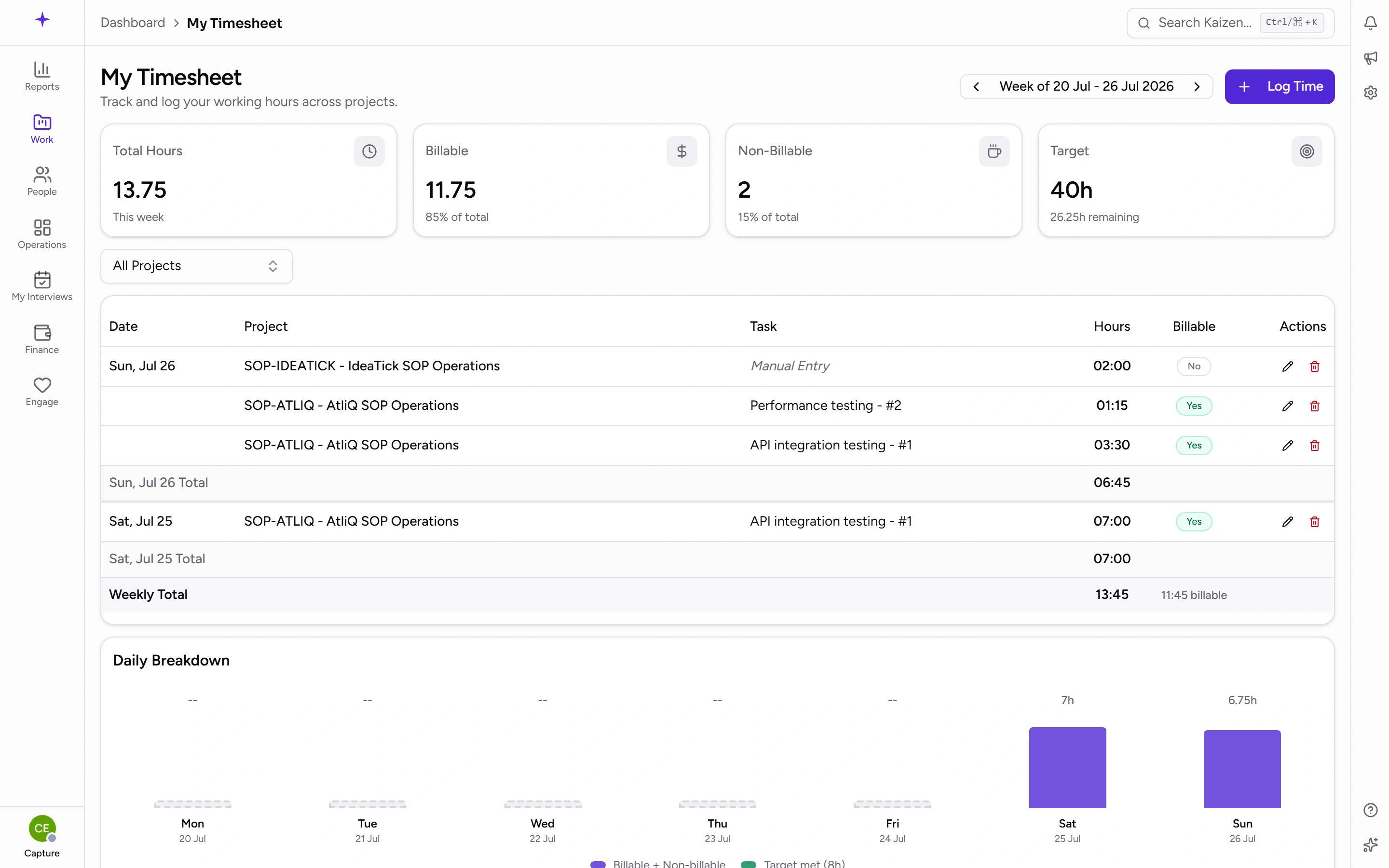
Across the top are four figures for the week — Total Hours, Billable, Non-Billable, and Target. The arrows beside Week of … step back and forward through your weeks.
Below that, every entry is listed with its Date, Project, Task, Hours, and whether it's Billable — Yes or No. Entries not tied to a task show as Manual Entry. Each day gets its own subtotal row, and the Weekly Total sits at the bottom. Daily Breakdown shows the same week as a per-day chart.
If nothing is there yet you'll see No time entries — use Log Time to start.
The most important thing to know
Saving a day may also close it — Kaizen starts out that way, so unless your company has turned it off, there is no draft.
When you click Save All, you're asked to confirm Submit & lock day. If your company closes a day on submission, your entries are stored and that day is locked once you confirm — you can't change them again without asking for it to be reopened. So fill the whole day in before you save, not entry by entry as you go.
Some companies switch that off, and then saving is just saving: you can come back and correct the day until its editing time runs out. The confirmation you're shown tells you which it is, so read it the first time rather than assuming — this is a setting each company chooses.
A day also locks on its own a set time after it ends, whether or not you saved anything. How long that is depends on your company — an administrator sets it, and whether weekends and public holidays count towards it. As a day nears its deadline you'll see Entry closes in Nh beside the save button, so you never have to know the setting to act on it. Some companies switch the deadline off entirely, in which case days stay editable and you'll see no countdown.
Common tasks
Log your hours for a day
-
Go to Time Logs, then Log Time.
-
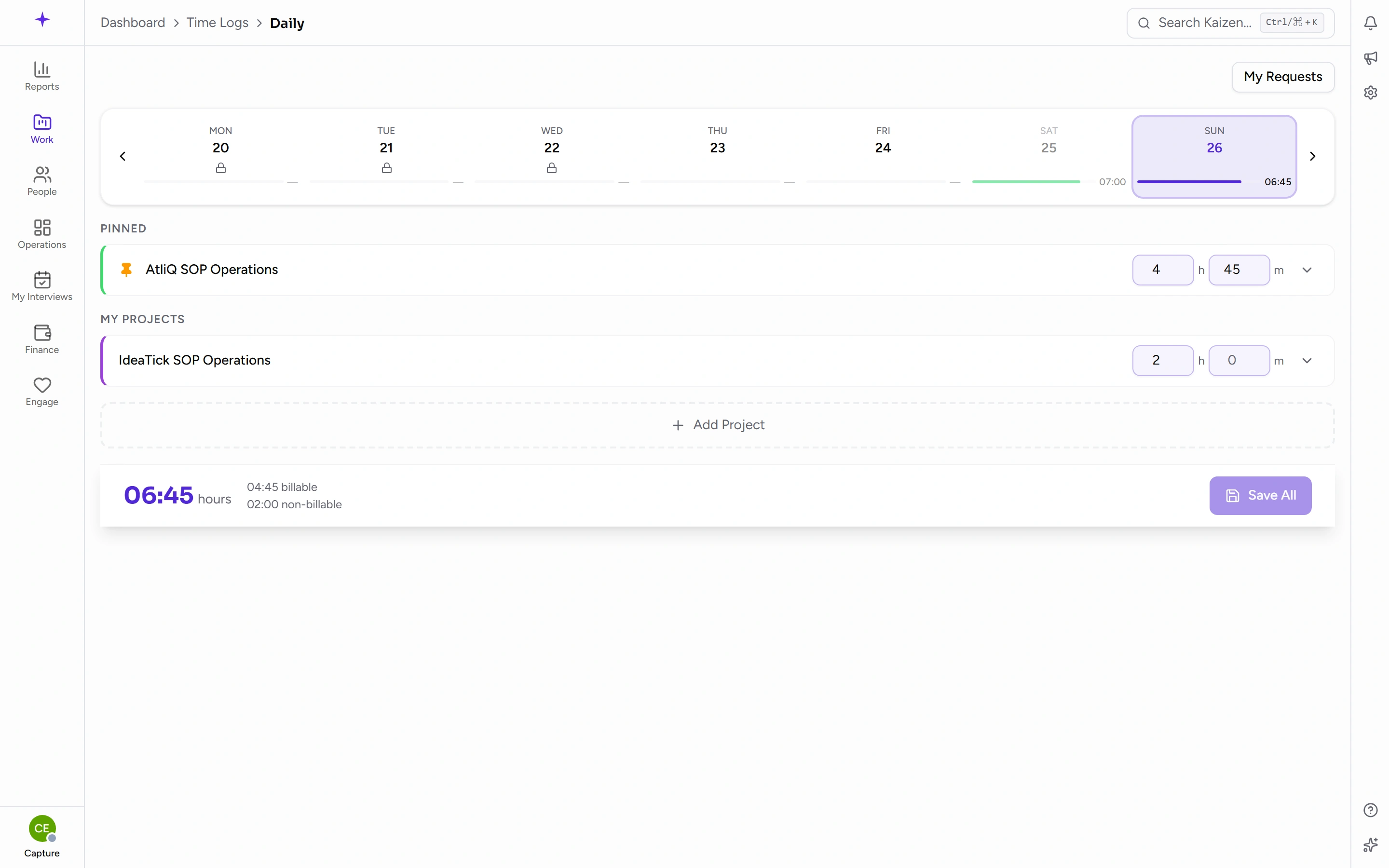
Pick the day from the strip along the top. Each day shows its own total, a padlock if it's already closed, and a marker if it's a Leave day or a Holiday.
ScreenshotThe daily time entry screen, with a row per project -
Your projects are already listed, grouped under Pinned, My Projects, Recent, and Other. If a project you need isn't there, see below.
-
Put your time in the two boxes on the project's row: hours in the first (up to 23), minutes in the second (up to 59). They're separate boxes, so 90 minutes of work is 1 and 30 — not
1.5. -
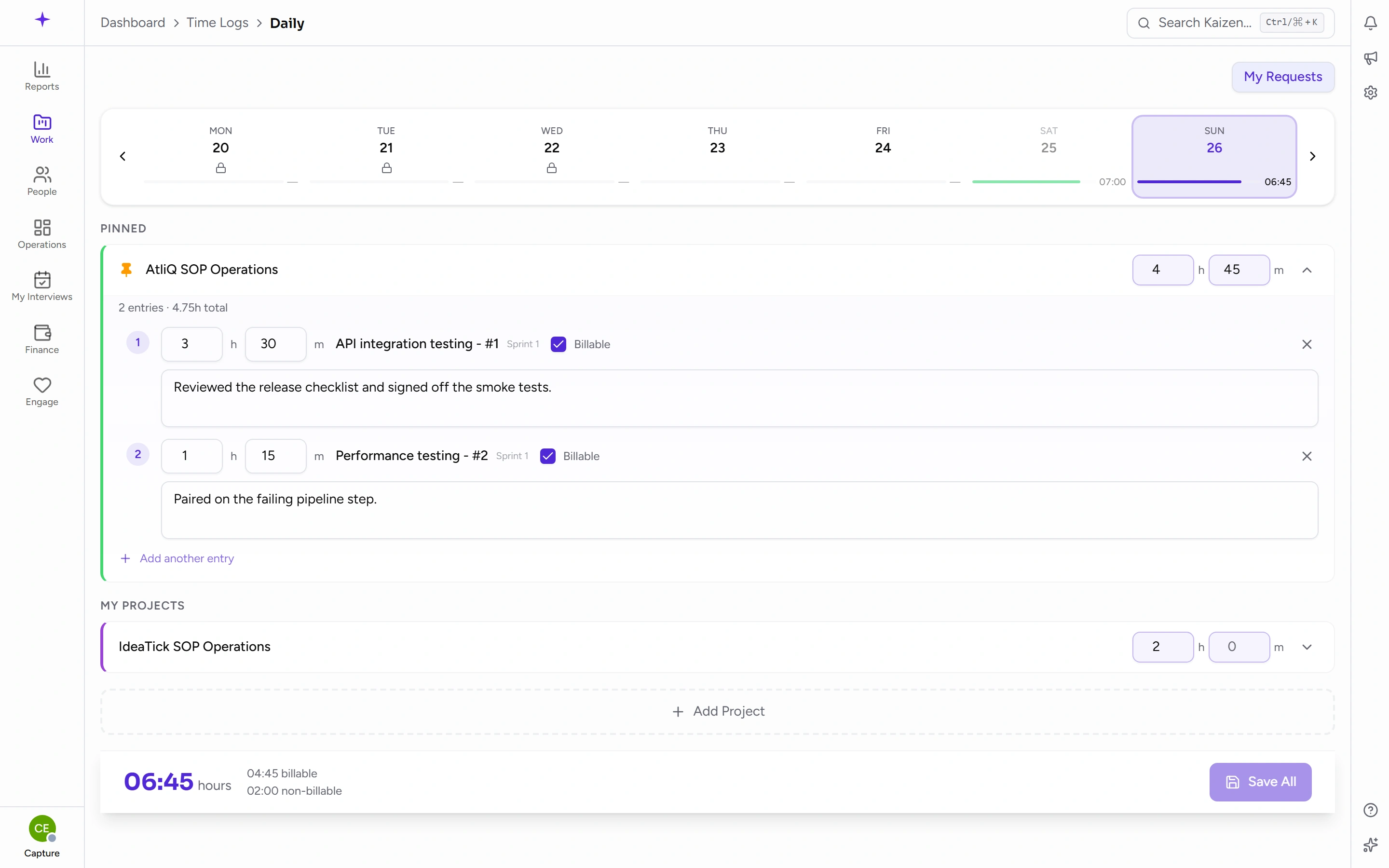
Click the row to expand it and say what you did. What did you work on? is required — the day won't save without it. Optionally pick the task the time was against, and tick or untick Billable.
ScreenshotA project row expanded, showing the hours and minutes boxes and the description -
Repeat for each project. An amber dot on a row means it has changes you haven't saved.
-
When the whole day is done, click Save All — or press Ctrl+S — and confirm Submit & Lock.
If you try to save with time logged but no description, you'll be told: Please add a description for every entry that has time logged. Find the row with the amber dot, expand it, and fill it in.
Split one project across several tasks
- Expand the project's row.
- Click Add another entry.
- Each entry gets its own hours and minutes boxes, its own task, its own Billable setting, and its own description. They're numbered so you can keep track.
- The project row now shows the combined total, and you'll see something like 3 entries · 6.50h total when expanded. The boxes on the row itself become read-only — edit the individual entries instead.
- Remove an entry with the x at its right.
Add a project that isn't listed
- At the bottom of the project list, use Search projects....
- Pick the project and it's added to the day under Other.
Projects marked ORG are open to everyone in the company; BU ones are open to your business unit. If a project you expect is missing entirely, you're not on its team and it isn't open — ask the project's manager to add you.
A project that has stopped won't take time
Time can only go against a project that is still running — one at Active, In Progress or Maintenance. A project at On Hold, Completed or Cancelled refuses it.
You'll notice this in two places. Stopped projects aren't offered in the search at the bottom of the list, so you can't add one to a day by accident. And if you try anyway — from the single-entry form, or by moving an entry across — you're told which project and why: Website Rebuild is completed, so time cannot be logged against it. Ask your project manager to reopen it if this is wrong.
Maintenance still takes time, deliberately. Active development being finished is exactly what that status means, and occasional work still arrives against it.
Hours you already logged are not frozen. If a project closes after you logged against it, those entries stay, and you can still correct one — the hours were worked, and often invoiced. What you can't do is move an entry onto a stopped project.
If you're on no projects at all, the screen says You're not assigned to any projects yet. and there's nothing to log against until that's sorted.
Keep your usual projects at the top
Hover a project's row and click the pin. It moves up into Pinned and stays there on future days. Pinning here also pins it in your projects list; unpinning removes it from both.
See what you already logged on a project
Hover the project's row. A summary pops up listing each entry for that day — the task, the time, and the description — so you can check the day without expanding anything.
Change or remove an entry
While the day is still open:
- On the daily screen, expand the project and edit the entry, then save again.
- On My Timesheet, the pencil beside an entry takes you to that day's screen so you can edit it there. The bin removes the entry outright, after a Delete Time Entry prompt.
Once the day is locked, both are refused — the pencil and bin are still on the row, but the change won't go through until the day is reopened. Only your own entries can ever be changed.
Log time against a lead
If you work on sales, the daily screen has a Projects / Leads switch, with a count of the leads currently in flight. Switch to Leads, add a lead with Search leads..., and log against it exactly as you would a project — hours, minutes, and a note. Lead effort is pre-sales time and is always non-billable; it doesn't go on a client invoice.
When a day is locked
Ask for a locked day to be reopened
-
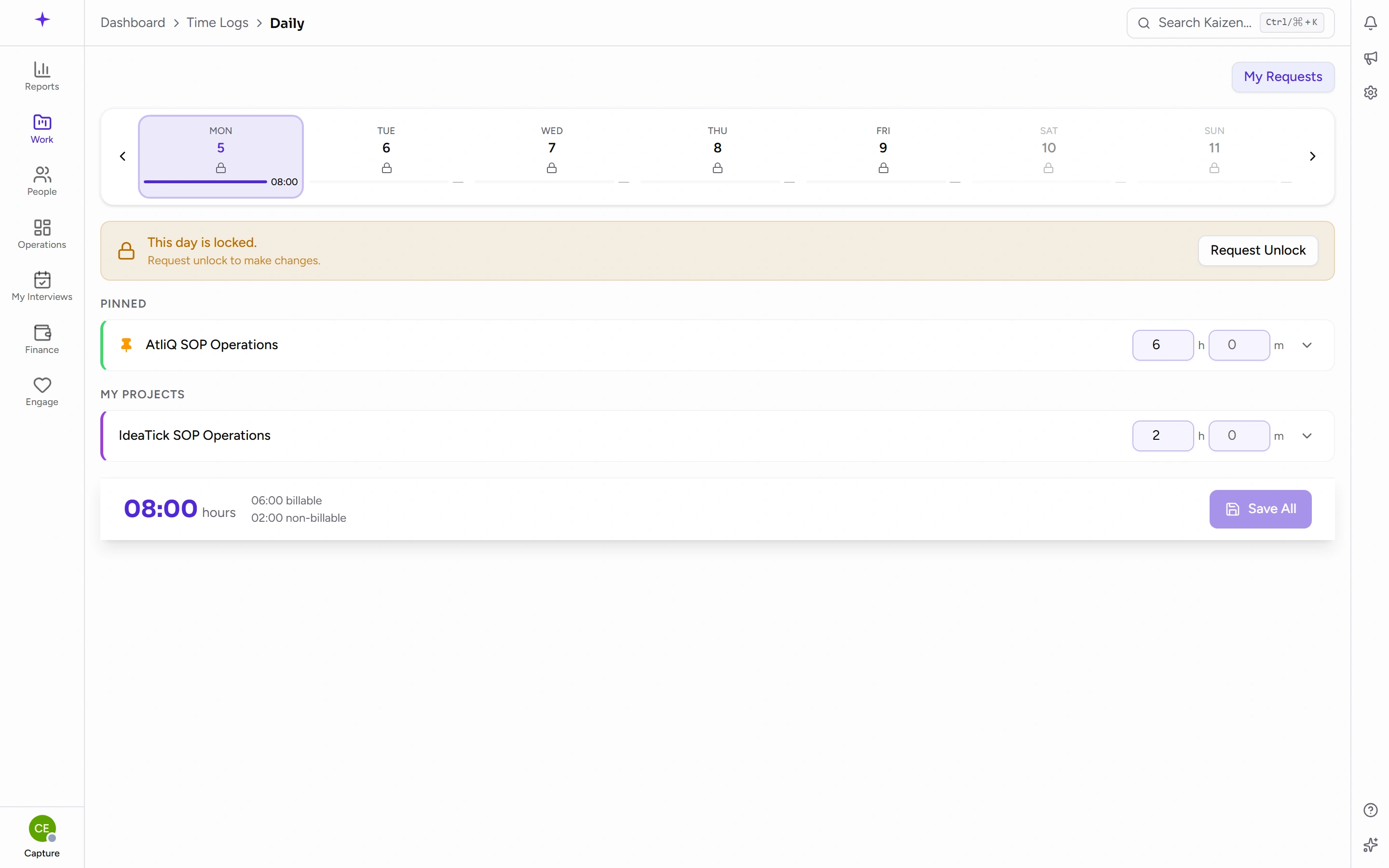
Open the day. You'll see This day is locked. with Request unlock to make changes.
ScreenshotA locked day, with the Request Unlock button -
Click Request Unlock.
-
Say why you need it. The reason is optional, but whoever reviews it sees only what you write here — so it's worth a line.
-
Click Submit Request. Your manager or HR reviews it.
Once it's approved
The day reopens and shows This day is unlocked for editing.
The unlock is single-use. Saving locks the day again immediately, and you'd need a fresh request to edit a third time. Make every change you need before you save.
Track your request
My Requests, at the top of the daily screen, lists the unlock requests you've raised and where each one stands. See time log requests for what the reviewer sees and how they decide.
Good to know
- Moving to another day or week with unsaved changes asks you to confirm before discarding them.
- Hours cap at 23 and minutes at 59 per entry. If you genuinely worked longer on one project, split it into two entries.
- Billable defaults to whatever the project is set up for, so check it on projects that are a mix.
- Time is logged against a project, optionally noting a task. It does not update a task's Actual Hrs — that figure is typed in by hand on the task itself.