

Resource allocation
Plan how much of each person's time each project has, week by week, and see planned against actual in one grid — who is over-booked, who has room, and who is away.
What you can do here
- Plan how much of each person's time is committed to each project, week by week or month by month.
- See at a glance who is over-committed and who has room, without reading a single number.
- Compare what you planned against what was actually logged.
- Find someone with the right skill who has spare capacity.
The grid
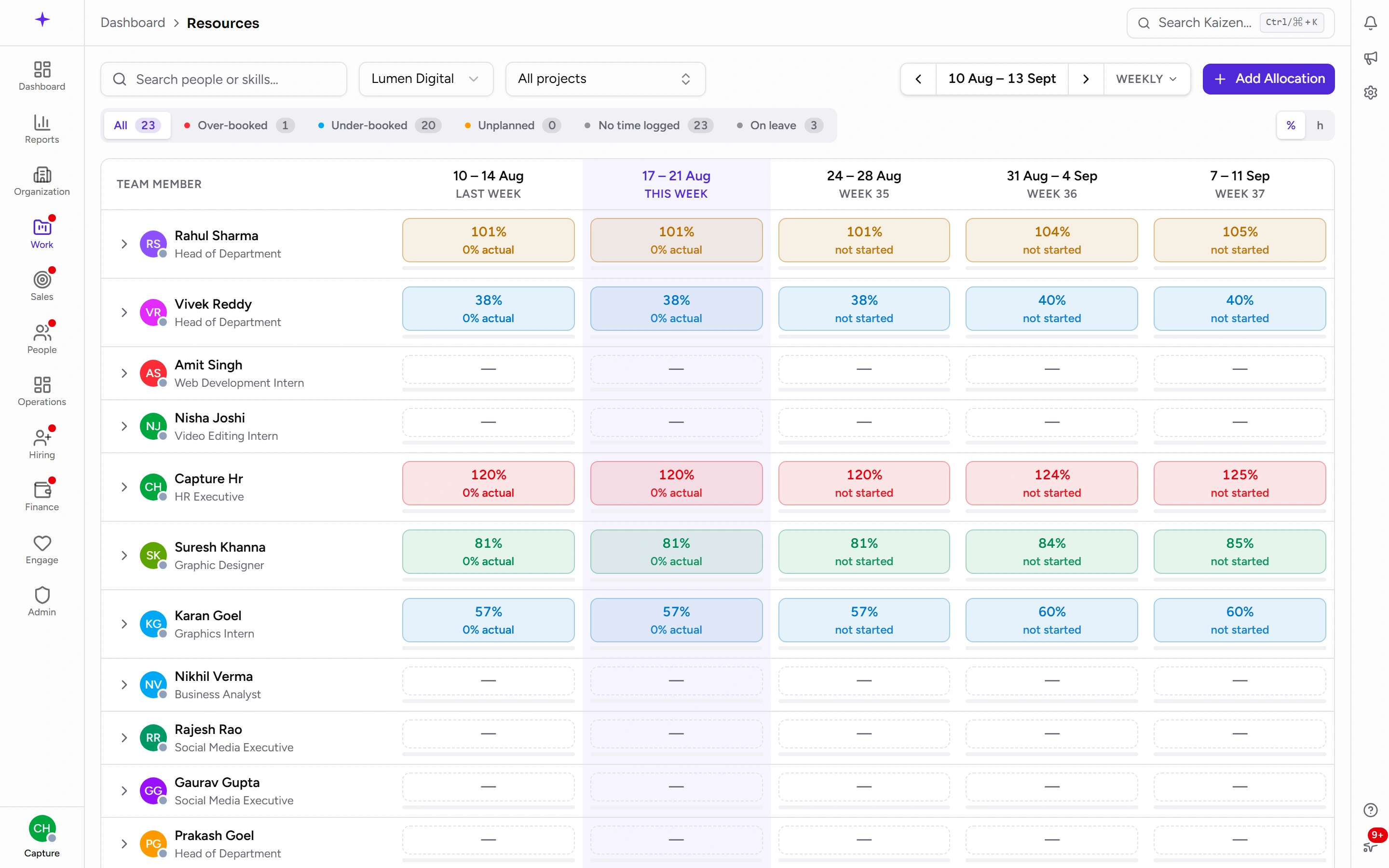
Resources is one screen: people down the side, time across the top. Every cell is one person in one period.
Reading a cell
The big number is how much of that person's capacity is planned. Underneath it:
0% actualand the like — what was actually logged against the plan. This is the number that tells you whether the plan meant anything.not started— the period hasn't happened yet, so there is nothing to compare against. Kaizen says so rather than reporting a shortfall against a plan nobody has had the chance to meet.- A dash — nothing planned. If nothing was planned and nothing was logged, the cell stays quiet instead of claiming you're behind.
Switch the whole grid between % and h with the toggle on the right, if you'd rather think in hours than percentages.
What the colours mean
- Blue — under-booked, below 80%. Room for more work.
- Green — healthy, 80–100%.
- Amber — stretch, 100–110%. Committed slightly beyond capacity; survivable, worth watching.
- Red — over-booked, above 110%. Somebody is going to have to break a commitment.
- A dashed outline — nothing planned at all.
Capacity is per person and per period, because leave moves the denominator. Somebody on leave for half a week has half the capacity that week, so the same hours show as a higher percentage. Leave that is only requested still counts against capacity — the plan should reflect what is likely to happen, not the best case.
Open a person up
Click the arrow beside a name. You get a row per project they're planned on, plus their unplanned work — time logged against something nobody allocated — and their leave. That's usually the fastest answer to "why is this person at 130%".
The toolbar
The top row narrows what you're looking at:
- Search people or skills… — one box for both. Type a name to find a person, or a skill to find everyone who has it.
- Business unit and All projects — the grid opens on one business unit, so if somebody you expect is missing, check this first.
- The arrows and date range step backwards and forwards; the range itself takes you back to today. Beside it, Weekly / Monthly switches how wide each column is.
The second row is the attention filter, with a live count beside each:
- All, Over-booked, Under-booked, Unplanned, No time logged, On leave.
All is where you start, and it's how you get back — picking it clears the others. Pick as many of the rest as you like. The counts describe the rows already on screen, so a count can never disagree with the grid underneath it — narrow by business unit and the counts narrow too.
Common tasks
Allocate someone
- Click Add Allocation.
- Pick the Team Member and the Project.
- Set the Start Date, End Date and Hours.
- Add a Role and Notes if you can — "240 hours" tells the next planner nothing about what for.
- Save.
The hours are spread across the working days in the span, so the grid can show what each week costs. Going past 100% warns you but doesn't stop you — the tool assumes you know something it doesn't.
See what's behind a cell
Click a cell and a card opens naming the period and what's booked in it — 3 allocations in this period, or Nothing booked in this period. Each booking shows its project, its hours, the dates it actually runs, and the role if one was given. Add allocation is at the bottom if you're allowed to create one.
It lists only the bookings that touch that period. A booking spanning a quarter appears in every week it covers, which is correct — but a booking that ends before this week, or starts after it, isn't in this cell's card.
Change or remove an allocation
Pick the booking from that card. Because an allocation is a span of dates and the grid shows periods, changing one is ambiguous — so Kaizen always asks what you meant, with nothing pre-selected:
- …this week only — splits the booking so the rest of its dates keep their current plan. Removing this way leaves a gap; the dates either side keep their booking.
- …this week and after — everything before this week stays as it is. Removing this way ends the booking here.
- …the whole allocation — applies across every period the booking covers.
It only skips the question when the booking sits entirely inside the period you clicked, because then all three mean the same thing.
Find someone with room
Type the skill into Search people or skills…, then use the Under-booked filter. That gives you people who have the skill and the capacity, without you reading the grid row by row.
Good to know
- Allocation is a plan; time logs are the record. Allocating somebody 20 hours doesn't create a timesheet entry and doesn't stop them logging something else. The actual figure under each cell is where the two meet.
- Over-allocation warns, it doesn't block. That's deliberate — but a person over 110% is a commitment somebody will have to break.
- You can always plan your own allocations. Planning for other people needs the matching access, which is why the grid may look read-only to you, and why you may see fewer people than a colleague does.
- Allocating somebody to a project is not the same as adding them to its team. Project membership is what lets them log time to it.