

Leads
Track opportunities through the pipeline, log activity and follow-ups, record pre-sales effort, and convert a won lead into a client.
What you can do here
- Track opportunities from first contact to won or lost.
- Work them on a pipeline board, as a list, or against a calendar.
- Record what you did and when to follow up.
- Keep the commercial picture — expected value, probability, close date.
- Convert a won lead into a client without retyping everything.
Three ways to work
Leads offers a Pipeline board, a List, and a Calendar. Filters sit above all of them: Search leads..., All Stages, and All Sources.
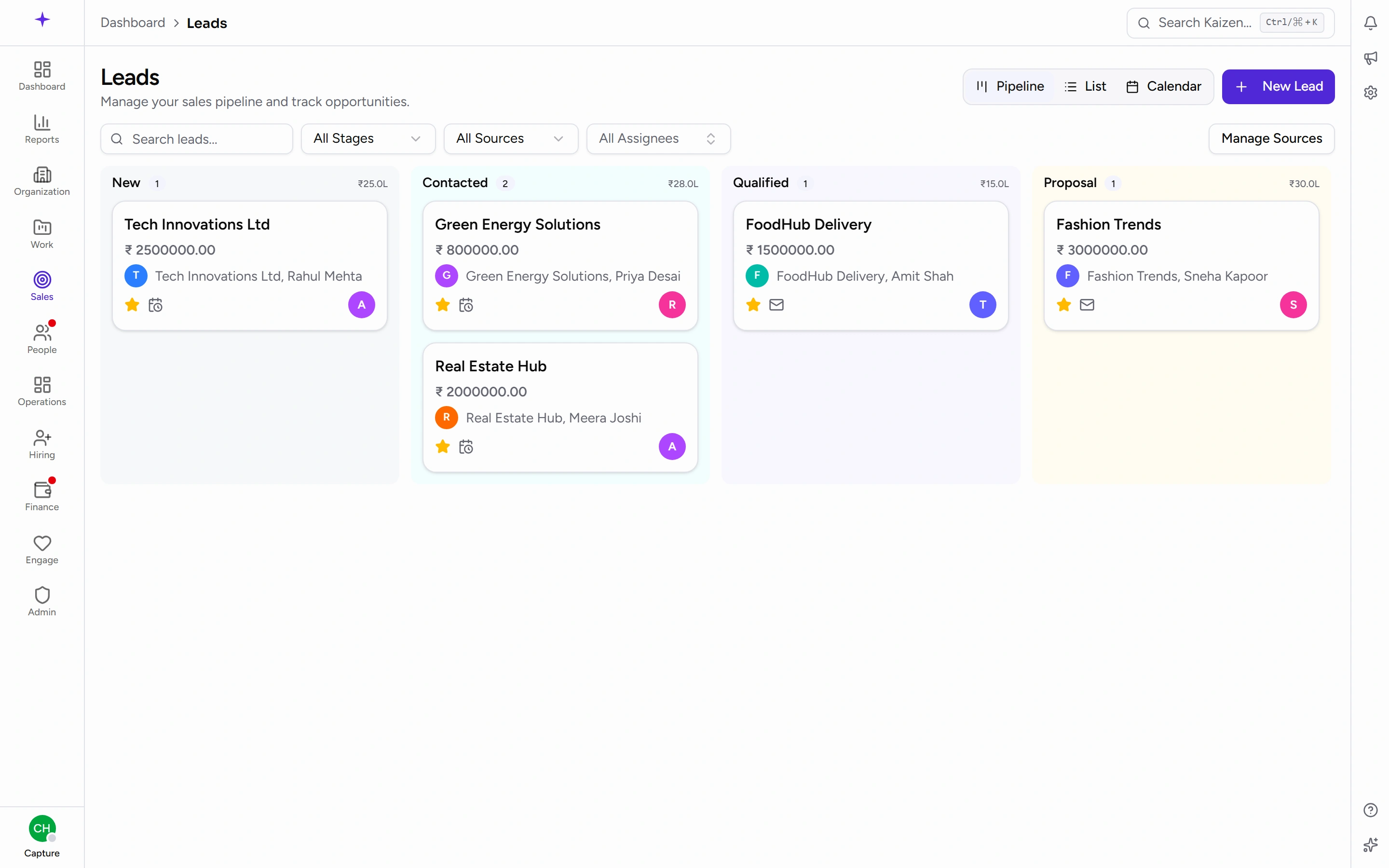
Every lead is headlined by its deal, with the company underneath — on the board, in the list, on the calendar, on the lead's own page, and in global search. A lead nobody gave a title to shows its company name instead, with nothing underneath. So name the deal something you'd recognise in a list: Warehouse automation — phase 2 tells you more than the company does when the same client has three deals running.
The stages are your company's own. Kaizen starts you with a set and you rename, reorder, add and remove them under Admin → Sales → Lead Stages — so what your board shows is whatever your company set up, not a fixed list. Three of them carry behaviour rather than just a name: the one a new lead starts in, the one that means you won, and the one that means you lost. Those three can be renamed and moved like any other, but not deleted. See reference data for how to change them.
Common tasks
Add a lead
Create one from the leads page and fill in the company and opportunity details. A lead can also be started from an inquiry, which carries the details across rather than making you retype them.
Move it through the pipeline
- On the Pipeline board, drag the card to the next column.
- Or open the lead and change its stage there.
Moving a lead into your lost stage (Lost, unless your company renamed it) opens Mark Lead as Lost and asks for a Reason for losing this lead. It's the one piece of pipeline data that pays for itself later, so it's worth writing properly rather than "no budget".
Keep the commercial detail current
A lead's page holds Expected Value, Probability, Expected Close, and Source, alongside Contact & Details — Company Name, Contact, Job Position, Salesperson, Email, Phone, Website, Address, Currency, and Referred By.
Expected Value and Probability are what pipeline forecasting rests on, so a stale probability quietly distorts every rollup that uses it.
Share a lead
Use Assignees on the lead to bring other people in — useful when a solutions person or a delivery lead is involved alongside the salesperson.
Log what happened
Use Activity on the lead to record a call, an Email, a Meeting, or a Follow-up, each with a Subject and Description. Activities can be edited and deleted afterwards.
Follow-ups are what the Calendar view is built on, so scheduling one puts it somewhere you'll actually see it.
Record pre-sales effort
The lead's effort figure is read-only — it's a rollup, not an entry form. Log the time itself in your daily timesheet, on the Leads side of the Projects / Leads switch.
Lead effort is always non-billable and never enters project or utilisation reporting, which is exactly why it's kept separate from project time.
Convert a won lead into a client
- With the lead in your won stage, start the conversion.
- Create Client from Lead opens pre-filled with Company Name, Contact Person, Email, Phone, GST Number, Address, Currency, Payment Terms (days), and a Zoho Contact ID.
- Check it and create. The client is linked back to the lead it came from.
This is the moment to get the commercial fields right — Payment Terms and Currency carry through to invoicing.
Good to know
- Salespeople see their own leads. Wider visibility depends on your access, so a pipeline that looks short may just be scoped to you.
- Reaching the won stage doesn't create a client on its own — conversion is a deliberate second step.
- The lead keeps its history after conversion, so the activity trail behind a client is still there to read.