

Attendance & regularization
Clock in and out, read your attendance log and calendar, and correct a day whose hours were recorded wrongly.
What you can do here
- Clock in and out, saying whether you're in the office or at home.
- See how long you've worked today, and how much is left to hit the month's target.
- Read your month as a list or as a calendar, with every day's hours, breaks and arrival.
- Ask for a day to be corrected when its punches are missing or wrong.
- Track those corrections, and withdraw one you no longer need.
- If you manage people: see your team's attendance and decide their corrections.
The Attendance page
Attendance in the sidebar is the hub for all of this. Two cards sit across the top:
Attendance Stats compares Me against My Team on two numbers — average hours a day, and the percentage of days you arrived on time.
Actions is where you clock in and out. It shows a running timer (Worked Today, or Not Clocked In before you start), how many hours are left for the month, and the average per day you'd need from here on. Below that are shortcuts to WFH Request, Partial Day Request, and your Attendance Policy.
Beneath the cards are three tabs — Attendance Log, Calendar, and Attendance Requests — plus a Team button if you're allowed to see other people's attendance.
Common tasks
Clock in and out
- Open Attendance.
- Before clocking in, set Clocking in from to Office or WFH. If you have an approved work-from-home day, it says · WFH approved today.
- Click Clock In. The timer starts.
- At the end of the day click Clock Out. The card then reads Done for today.
Each punch records where you were, so a day worked entirely from home shows a WFH badge, and a day split between office and home shows Split.
Read your month
Open the Attendance Log tab. Each row is a day, with:
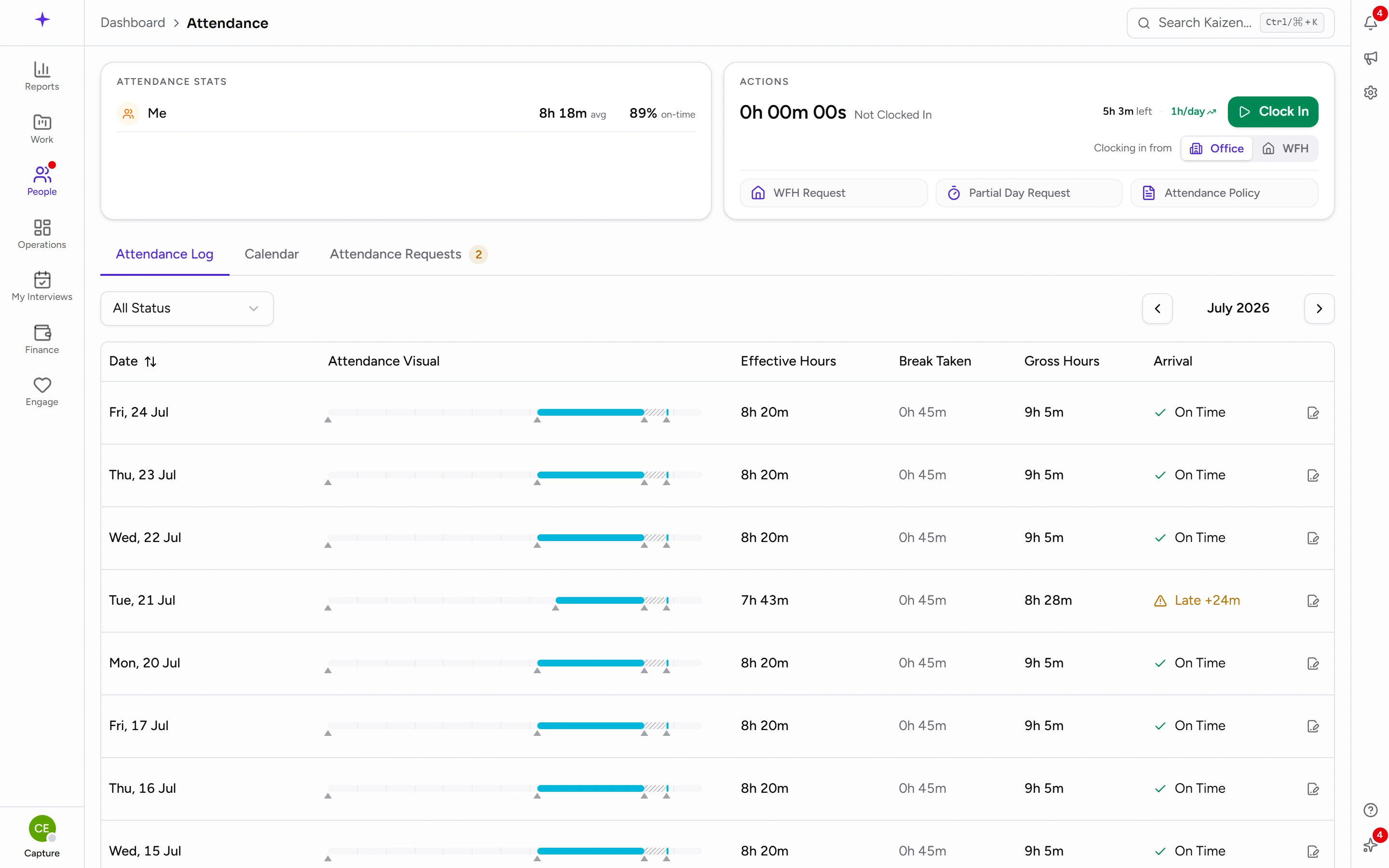
- Date
- Attendance Visual — a bar showing your punches and breaks across the day
- Effective Hours — time actually worked, breaks removed
- Break Taken
- Gross Hours — first clock-in to last clock-out
- Arrival — whether you were On Time
Use the arrows beside the month name to move between months. If any of the month is leave, the toolbar notes how many hours that accounts for. Filter by Status — Present, Absent, Leave, WFH, Holiday, Half Day, Weekend.
The Calendar tab shows the same month as a grid, colour-coded with a legend: Present, Absent, Leave, Work from Home, Holiday, Half Day, Weekend. It's the quicker way to spot a gap.
Correct a day that was recorded wrongly
- Open the Attendance Log tab and find the day.
- Click Request Regularization on that row. A panel opens headed Attendance Regularization.
- The Date is already filled in.
- Pick a Category: Time Correction (a missed or wrong punch), Work From Home, On Duty (working off-site — client visit, event), or Other.
- Under Time slots, enter what you actually worked — the times you started and finished, and whether that stretch was office or home. Add more than one slot if the day was broken up.
- Give a Reason. This is required, and it's what your approver reads.
- Submit the request.
Track a correction
Open Attendance Requests → Regularization. Each row shows its status, and View details opens the full request including the times you asked for. Filter by status, or by person if you can see other people's.
To withdraw one, use the revoke action on the row and confirm at the Cancel Request prompt.
If you manage people
Team, at the top right of the tabs, shows your team's attendance.
Corrections raised by your reports appear under Attendance Requests → Regularization, with a pending count on the tab. Open View details to compare what was recorded against what's being claimed, then approve or reject. You can add Comments (optional) either way — on a rejection that's the only explanation the person gets.
The same tab holds WFH and Partial Day requests, each with its own pending count.
Good to know
- Effective Hours is the number that matters for your target — it excludes breaks. Gross Hours is just first punch to last.
- Regularization is for days already recorded. To give notice in advance that you'll be late or leave early, raise a partial-day request instead; to arrange working from home, raise a WFH request.
- Attendance and time logs are different things. Attendance is when you were working; time logs are which projects you spent those hours on.
- A day showing Absent when you were working is exactly what regularization is for — raise it with Time Correction and the times you actually worked.