

Events
Put company, department, team and external events on everyone's radar, mark the ones people must attend, and see who's coming.
What you can do here
- Announce something that happens at a time and a place.
- Say whether you're coming, and see who else is.
- Flag the ones attendance isn't optional for.
An event is the right tool when there's a date, a time and a room (or a link). If there's no time attached to it, you want an announcement instead.
Where to find it
Upcoming Events on your dashboard is the everyday way in — the events nearest in time, with View All Events underneath, which opens the full list.
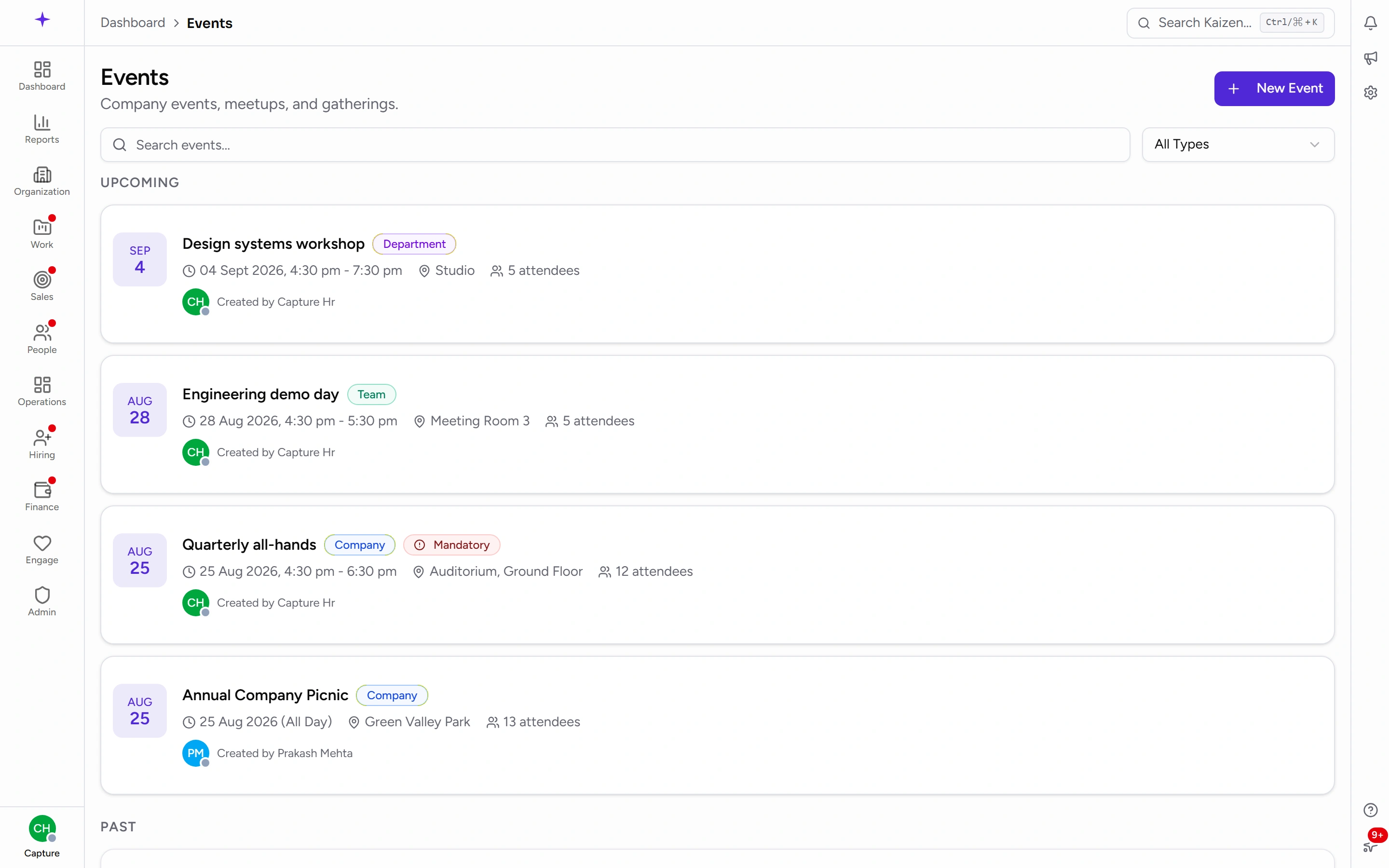
The list itself is at /events, split into Upcoming and Past so the next thing is always at the top. It's searchable, and it filters by type.
Creating an event
Choose New Event and fill in:
- Title and a description.
- Type — Company, Department, Team or External. This is a label for the reader, and what the type filter searches on.
- Location — a room, an address, or a meeting link. Optional.
- Start and end — the end has to be after the start.
- All Day Event — for things measured in days rather than hours.
- Mandatory Attendance — see below.
Everyone can read every event, whatever its type. Types describe an event; they don't restrict who sees it.
RSVPs
Open an event and answer: Accepted, Maybe or Declined. Changing your mind later is just answering again — the latest answer replaces the last one, and there's no limit on changing it.
The event page shows the tally — how many accepted, how many maybe, how many declined — and who's in each. "No responses yet" means exactly that; it doesn't mean nobody is coming.
Mandatory events
Ticking Mandatory Attendance puts a red badge on the event wherever it appears.
It's a signal, not a lock. Kaizen doesn't RSVP for anybody, doesn't chase non-responders, and doesn't stop someone declining. Use it to distinguish the all-hands from the optional lunch, and follow the human side up yourself.
Editing and cancelling
The person who created an event can always edit it. Editing it more widely, and deleting, are separate permissions.
Deleting removes the event and its responses. There's no cancelled state — if you want people to know a thing has been called off, say so somewhere they'll read it before you delete the entry.
Renaming an event changes its web address. Anyone holding the old link gets a not-found page. If you've circulated a link, share the new one after a rename.
Good to know
- Events aren't in the sidebar. Reach them from the dashboard widget, from a link someone sends you, or from
/eventsdirectly. - Nothing is emailed. Creating an event doesn't notify anybody — it appears on the dashboard and in the list. If it matters, announce it as well.
- Nothing reaches anyone's calendar. There's no Outlook or Teams invite behind an event; the RSVP lives in Kaizen only.