

Your skills
Record what you're good at and how good you are at it, so resourcing and project staffing can find you — and get a colleague to verify it.
What you can do here
- Say what you can do, and how well.
- Ask a colleague to verify it.
- Take off a skill you no longer want to be called on for.
Your skills aren't decoration. When someone is staffing a project and needs a person who can do a particular thing, they search for that skill by name on the resourcing grid — and what they get back is the list of people who have it. A blank skill list means you're invisible to that search.
Where to find it
Two places, doing the same job:
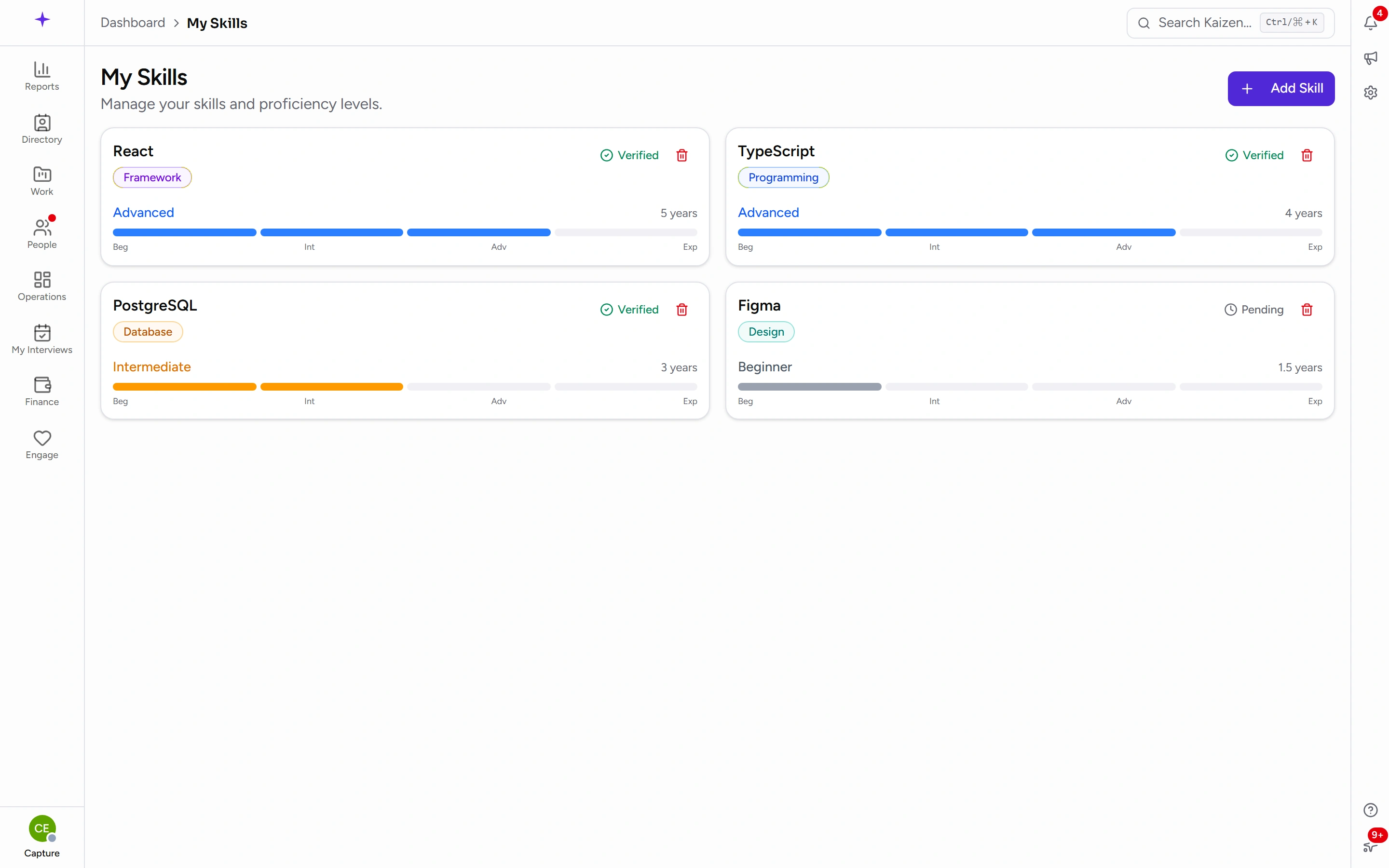
- My Skills — a page of its own, one card per skill, at
/user-skills. - Your profile — the Skills section on the Overview tab, which opens the same list in a dialog. This is the one most people use, because they're already there.
Adding a skill
Choose Add Skill, then:
- Skill — pick from the list. It's searchable, and it only offers skills you haven't already added.
- Proficiency — Beginner, Intermediate, Advanced or Expert.
- Years of Experience — optional, and it takes halves (
3.5is fine).
Save, and it appears straight away.
If the skill you want isn't in the list, it hasn't been set up yet. The skills list is a company-wide catalog kept by an administrator — ask for it to be added rather than picking the nearest thing, which is how a search for the real skill ends up returning nobody.
Proficiency, honestly
The four levels only mean something if people use them the same way. A rough shared reading:
- Beginner — you've used it, with help or with time to look things up.
- Intermediate — you can do ordinary work in it unsupervised.
- Advanced — you handle the awkward cases, and others ask you.
- Expert — you set the approach, and you're the fallback when it goes wrong.
Overstating helps nobody: it's the level, not the name, that decides whether you get put on a piece of work.
Verified skills
Each skill shows either Verified or Pending.
Verification is somebody else confirming your claim. Anyone with the right to verify skills can do it from your profile — and you cannot verify your own, which is the whole point of the badge.
Pending isn't a problem, and nothing waits on it. It just means nobody has confirmed it yet. If a skill matters for the work you want, it's worth asking your manager to look.
Changing or removing a skill
Proficiency is editable in place from the Skills section on your profile — it's the field that actually moves as you get better.
Removing takes a confirmation, and it takes the verification with it. Re-adding the skill later starts it as Pending again.
Remove a skill when you no longer want to be staffed on it. Leaving something on the list you'd rather not do again is how you get asked to do it again.
Good to know
- A skill can be added for you. Managers with the right permission can add skills to their team members, so a skill you didn't enter isn't a fault.
- Years of experience is informational — it's shown beside the level, and it doesn't change how anything is calculated.
- Categories come from the catalog, not from you. The coloured tag on each card is the category the administrator filed that skill under.