

Task templates
Define a repeatable process once — onboarding, offboarding, a client kickoff — then apply it to a person, client or project to create all the tasks at once.
What you can do here
- Write down a process once as an ordered list of steps.
- Apply it to a particular person, client, or project — every step becomes a real, assigned task.
- Have step titles and instructions fill in the target's details automatically.
- Force steps to happen in order, where that matters.
- Watch every running process in one place, and stop one that's no longer needed.
Building a template
Open Task Templates and create one. The form has:
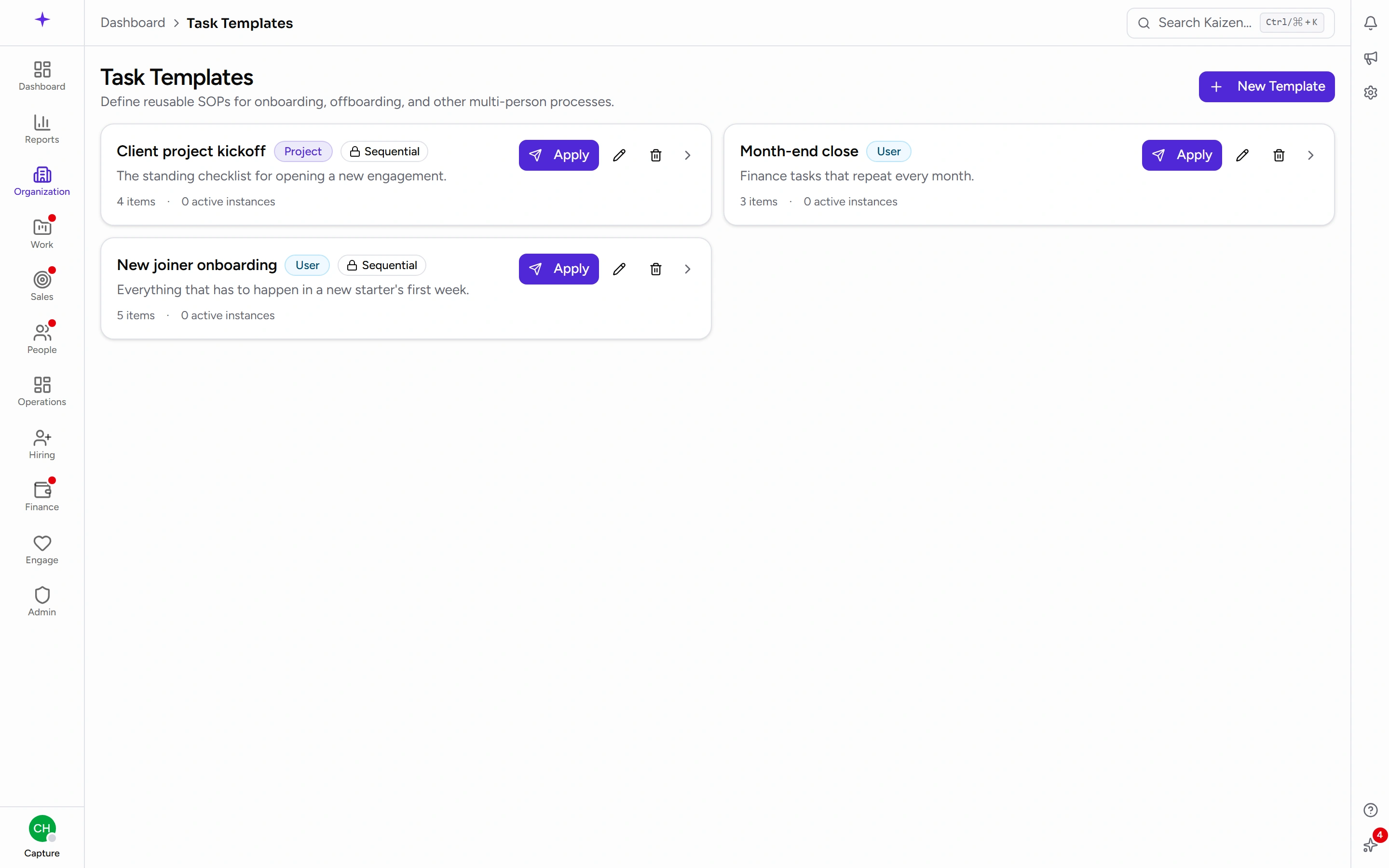
- Name — for example New Joiner Onboarding.
- Target — what this process is about: User, Client, or Project. This decides what you can apply it to, and which merge fields are available.
- Description — a short line, shown on the template list.
- Sequential — when on, each step must finish before the next can start.
- Active — whether it can be applied.
Then the Items: the steps themselves, in order.
What each step holds
- A title, which supports merge fields.
- What to do — instructions for whoever gets the task.
- Default due (days from start) — an offset, not a date. 0 means the start date, +5 means five days after, and -1 means the day before — useful for the things that have to happen before someone's first day.
- Assigned to — a specific person, or Instantiator picks to leave it open for whoever runs the process to decide.
Merge fields
Titles and instructions can pull in the target's details, written as {{target.name}} and similar. The form shows the fields available for the target type you chose, and clicking one copies it ready to paste.
That's what turns "Order laptop" into "Order laptop for Priya Sharma" automatically on every run, without you editing the template each time.
Running a process
- Open the template and apply it. Templates have to be Active to be applied.
- Choose the Target — the actual person, client, or project.
- Set the Start date. Every step's due date is worked out from this using its offset.
- Review the table of Task, Assignee and Due Date that you're about to create, and fill in any assignee the template left open.
- Apply. The tasks are created, assigned, and the people involved are notified.
The preview at this step is worth reading — it's the last point at which a wrong start date or a missing assignee is cheap to fix.
Tracking what's running
Template Runs lists every process across the company, with a progress bar and how many of its tasks are done.
Filter by template, by status — In progress, Completed, Cancelled — or by type (User, Client, Project).
Open a run to see each task with its state and assignee. In a sequential process, steps that can't start yet are marked Blocked by Step N, meaning they wait until that step reaches a final state — done or cancelled.
To stop a process, cancel the run. The tasks already created stay where they are and can be closed off by hand, so nothing disappears from anyone's list without them noticing.
Good to know
- Editing a template only affects future runs. Anything already running keeps the tasks it was created with — so fixing a typo in a template doesn't fix it in the twelve onboardings already under way.
- Turning a template Active off retires it without touching history or anything currently running.
- Sequential is worth using sparingly. It's right for genuine dependencies, and irritating when steps could actually happen in parallel.
- Steps become ordinary tasks, so everything on working with tasks applies to them — comments, subtasks, reassignment, the lot.