

Timesheet unlock requests
Track the unlock requests you have raised, and — if you review them — approve or reject your team's requests to reopen a locked day.
What you can do here
- See every unlock request you've raised and where each one stands.
- If you review them: work through your team's pending requests and approve or reject each one.
- Narrow the list by person, status, or date range when you're looking for a particular request.
Where to find it
My Requests, at the top of the daily time entry screen, opens the page headed Time Log Requests — "Review and manage unlock requests for locked time entries." If any are waiting on you, a pending count sits beside the heading.
What you see depends on your role:
- Everyone sees the requests they raised themselves.
- Line managers and approvers also see requests from everyone who reports to them, however far down the chain, along with Actions to approve or reject.
- Finance, HR, and administrators see every request in the company.
So if the list looks short, that's the scope working as intended — not a missing request.
What the list shows
Each row gives you the Employee, the Date they want reopened, their Reason, the Status, and Reviewed By — who actioned it and when. Long reasons are trimmed in the row.
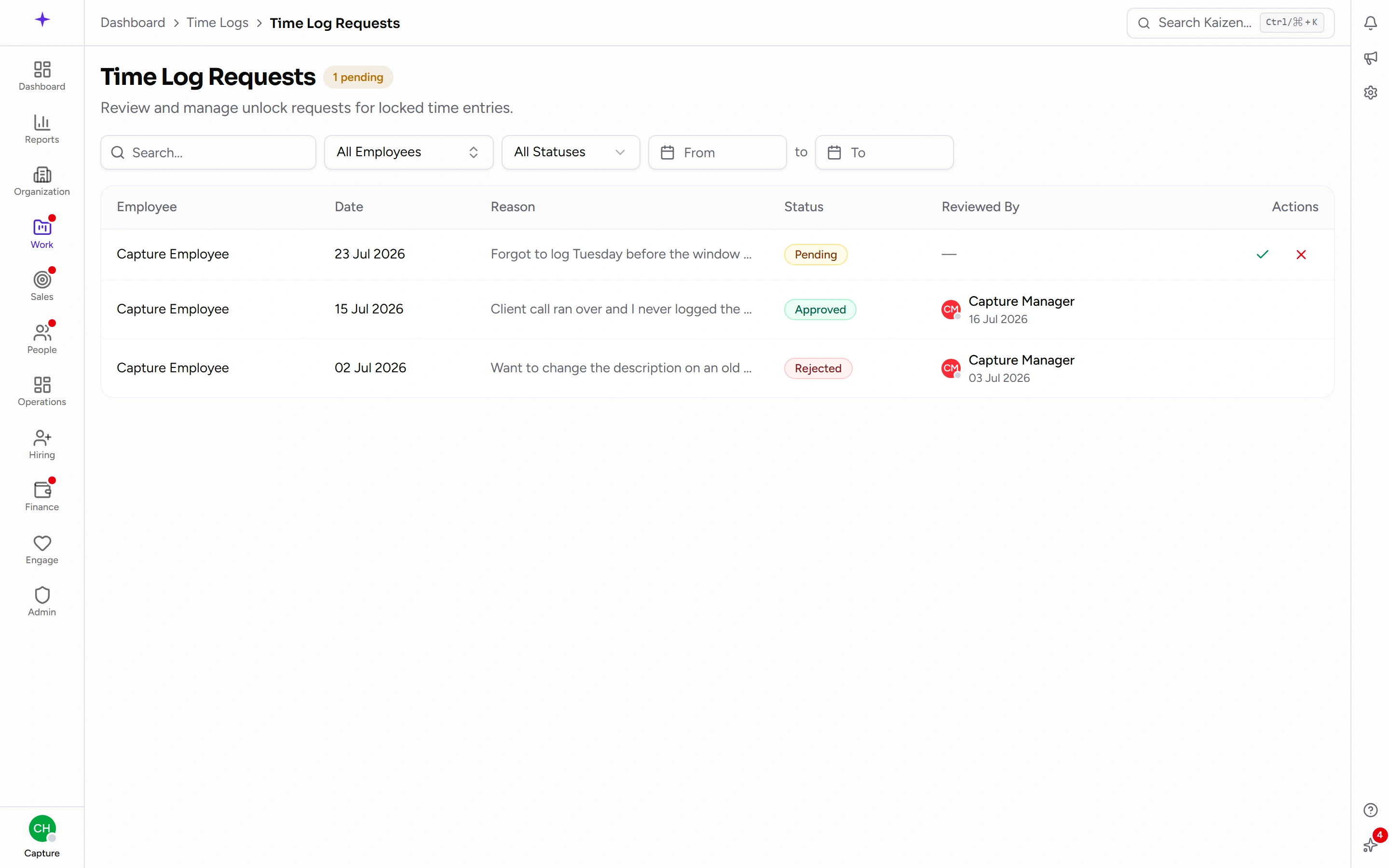
Status is one of:
- Pending — waiting for a decision. Only pending requests can be actioned.
- Approved — the day was reopened.
- Rejected — declined. The reviewer may have left a reason.
If nothing matches you'll see No requests found.
Common tasks
Find a request
- Type into Search... to match on a reason or a person's name.
- Use the employee picker to pick one person — Search employee... filters the list of names.
- Set the status filter to All Statuses, Pending, Approved, or Rejected.
- Use From and To to restrict it to a date range.
Clear the filters to go back to the full list.
Approve a request
- Find the Pending request.
- Click the tick in the Actions column.
The day reopens for that person straight away. It stays open for a set time — your company decides how long, and it's usually shorter than the original window — or until they save, whichever comes first, because saving locks the day again. If they need another go after that, they raise a fresh request. An administrator can change that length — it has its own page under Admin controls.
Before you approve, it's worth a glance at what's actually being asked: the Date tells you how far back it goes, and the Reason tells you why. Reopening a day lets its hours change, which can move figures that have already been reported on.
Reject a request
- Find the Pending request.
- Click the cross in the Actions column.
- You're asked for a rejection reason. It's optional, but the person sees it — and "no reason given" invites them to just ask again.
Check on a request you raised
Open the page and look at the Status of your own row. Nothing is needed from you while it says Pending.
Once it says Approved, go back to the day on the daily entry screen — it will show This day is unlocked for editing. Make all your changes in one go, because saving closes it again.
Good to know
- You can only have one pending request per day. Asking again while one is outstanding is refused with You already have a pending request for this day.
- You can't request an unlock for a day that isn't locked — there's nothing to reopen.
- Only pending requests can be approved or rejected. Once actioned, a request is a record and can't be changed; the person raises a new one instead.
- See logging your time for how a day gets locked in the first place and how to raise the request.