

The work-from-home policy
Set how many work-from-home days people get in a financial year, cap how many they can take in a short stretch, and give individuals their own allowance.
What you can do here
- Decide how many work-from-home days everyone gets in a year.
- Stop a year's worth being taken in one stretch.
- Give a particular person a different allowance, and record why.
Where to find it
Open Admin, then WFH Policy under Leave & Attendance in the settings rail. It needs the permission to manage the WFH policy; without it the screen isn't offered.
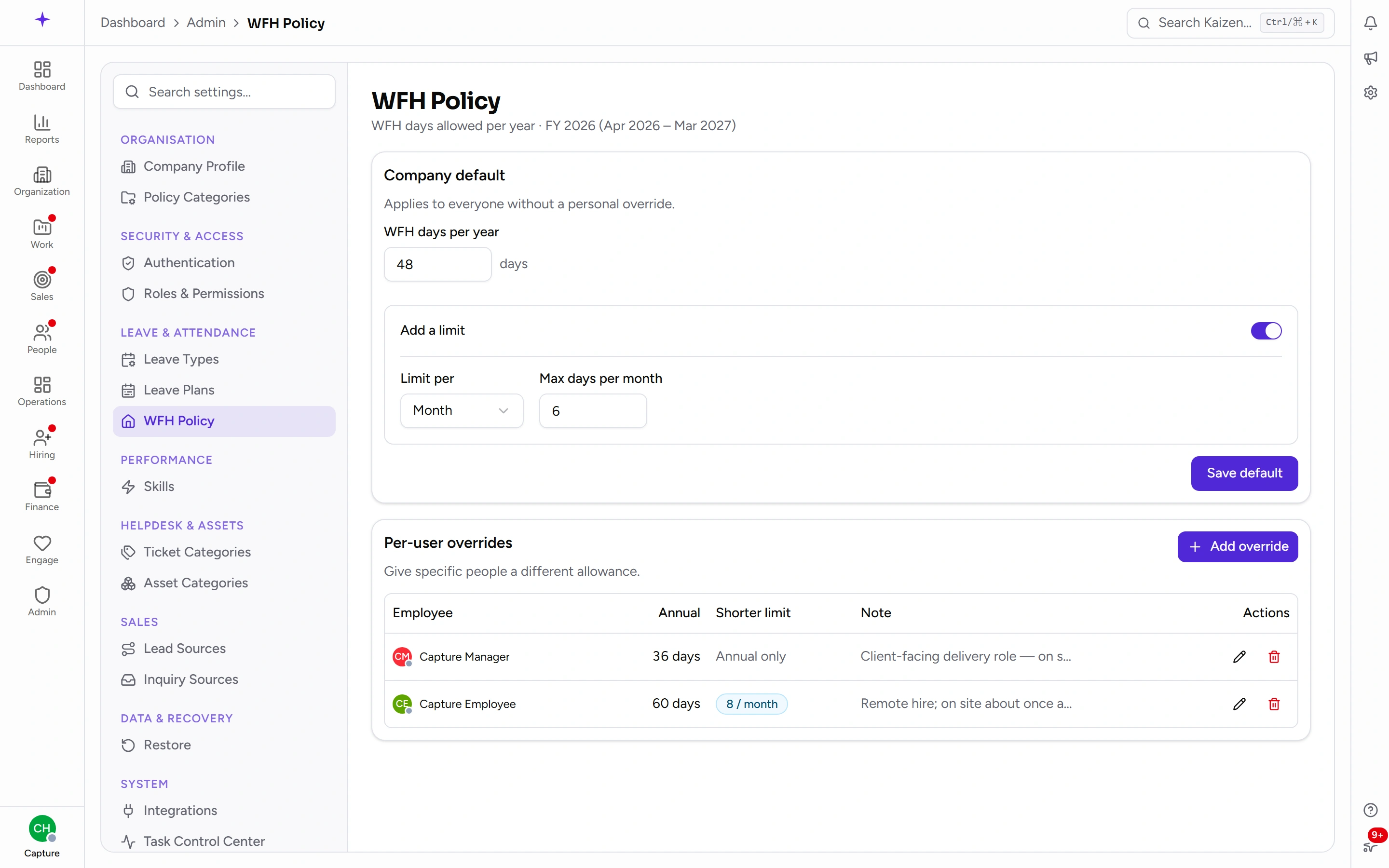
The heading tells you which financial year the numbers describe — your company's, not the calendar year.
The company default
WFH days per year is the allowance everyone gets unless they have an override — it applies to everyone without a personal override, as the card says. Set it and choose Save default.
Underneath, Add a limit turns on an optional throttle: Limit per week, month or quarter, plus Max days per that period. Leave it off and only the annual number applies.
The throttle is the field worth thinking about. An annual number on its own permits someone to take the lot in one run and then be office-bound for ten months; a monthly or quarterly cap spreads the same allowance without you having to police it.
Per-user overrides
Underneath the default is Per-user overrides — people who get their own numbers, listed with their Annual allowance, any Shorter limit, and the Note explaining it.
Choose Add override, pick the employee, and set their Annual WFH days, optionally their own shorter limit, and a Note. The note is the field that saves you six months later: why this person has a different allowance is exactly what nobody remembers.
An override replaces the default for that person completely — it isn't added to it. Someone whose row reads Annual only has no shorter limit at all, whatever the company default says.
Editing and removing work from the row. Removing an override puts that person straight back on the company default.
What the limits actually do
They inform. They never block.
When someone requests work from home for more days than they have left, the request form warns them — This exceeds your WFH balance — tells them how many days are actually left, and lets them submit anyway. The request then carries an Over limit flag in the approval queue, and the approver's email says so too.
That's the whole mechanism, and it's deliberate. The decision stays with the approver, who knows about the client visit or the family situation that the number doesn't.
How the balance is worked out
There is no stored balance. Every figure is worked out at the moment it's shown:
- Annual — the allowance, minus approved days, minus days sitting pending, across the financial year. Pending days are held back so two requests in the same week can't quietly both fit.
- Period — the same sum inside the shorter window, when a throttle is set.
A day counts against the financial year its request starts in.
Good to know
- No policy means no limit at all — not a limit of zero. Until an annual number is saved here, the request form shows no balance and nothing is ever flagged. If you expected over-limit warnings and never see one, check that a default exists.
- Nothing carries over. Balances are derived from the financial year's requests; unused days don't roll forward, and there is nothing to close off at year end.
- Changing the number is immediate and retrospective. Lowering the annual allowance mid-year can put people over their limit on requests already approved — nothing is withdrawn, but the flag appears.
- This is about how many, not whether. Whether a particular day off site is granted is still the approver's call, on the request itself.