

Setting up your workspace
The first-run setup for a new workspace — set your password, confirm the company profile, bring your people in, and invite the team.
What you can do here
- Sign in for the first time and set a password of your own.
- Confirm the company details every document and screen inherits.
- Bring your organisation in from a spreadsheet or Keka.
- Send everyone a sign-in link.
This runs once, when a workspace is brand new. Only someone who can manage system settings sees it — usually the person the workspace was created for.
Getting in the first time
Your workspace is created with its own address, and the first administrator gets an email with a one-time sign-in link. Opening that link signs you straight in — there is no password to look up, because none has been created yet.
That link works once and lasts 24 hours. If it expires before you get to it, ask for a new one rather than hunting for a password that doesn't exist.
Until setup is finished, the workspace shows you the setup flow and nothing else. That's deliberate — it stops half-configured settings reaching the rest of the company.
The steps
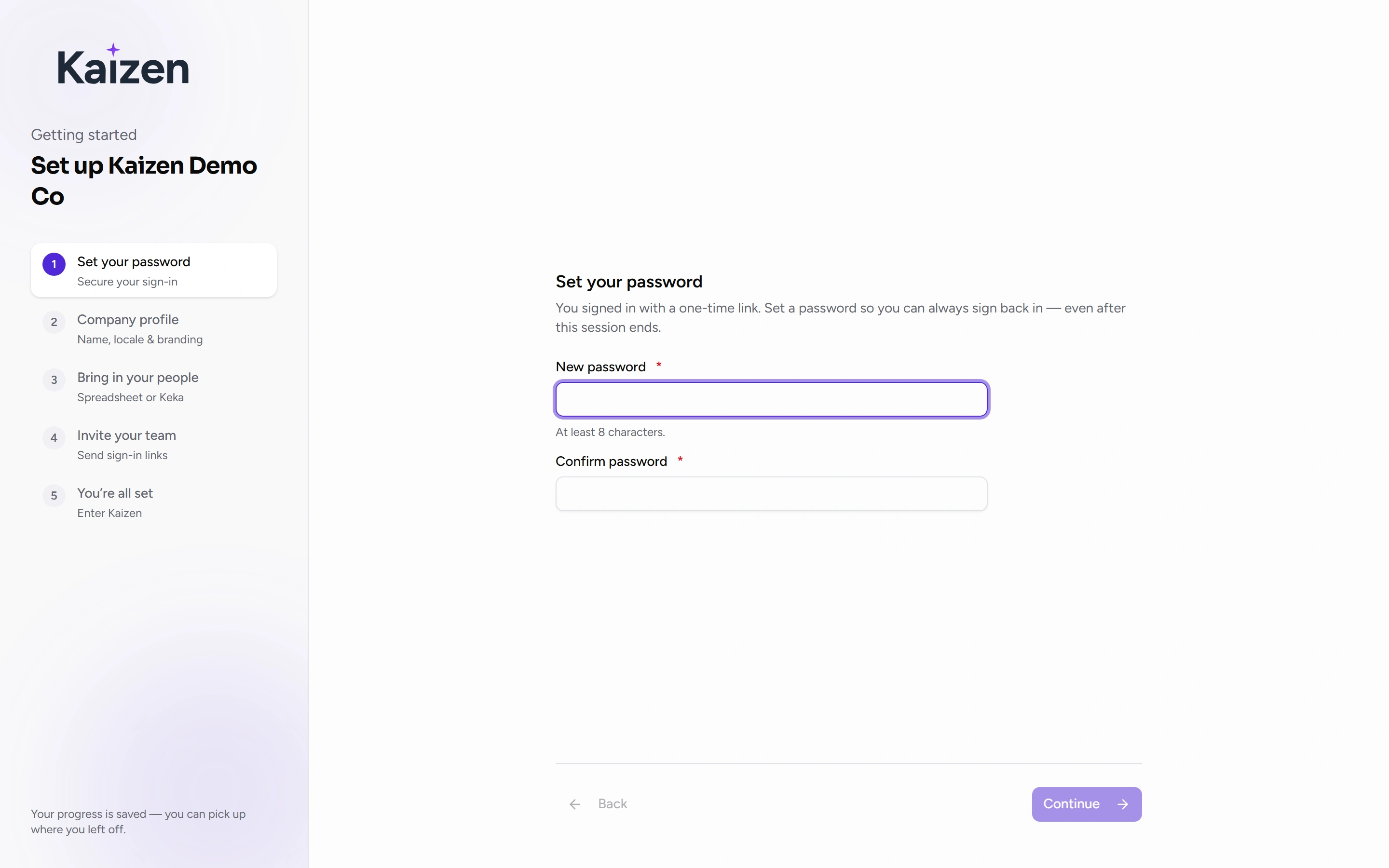
1. Set your password
Set your password — you arrived on a one-time link, so this gives you a way back in on your own. It's saved the moment you continue, which means an expired session afterwards is just a normal sign-in, never a lockout.
Once it's set, you can't step back to it. Change it later from your profile like anyone else.
2. Your company profile
Confirm the details we pre-filled: display and legal names, Timezone, Currency, Fiscal Year Start Month, the company address, and your logo.
Worth slowing down here. These are company-wide with no per-person override, and they decide how every date, amount and financial period reads for everyone — as well as what clients see in their portal. Fixing a wrong fiscal year later means re-reading every report that used it.
3. Bring in your people
Import your organisation — business units, departments, designations, and people with their reporting lines — from a spreadsheet or straight from Keka. It's the same importer you can reach later from Organization → Data Import, dry run and all: a preview of exactly what would happen before anything is saved.
Reporting lines matter more than they look. Leave, work-from-home and attendance approvals all route by who reports to whom, so getting managers right here is what makes approvals work from day one.
If your staff list isn't to hand, It's just me for now takes you onward without importing. Treat that as a real answer rather than a postponement — Kaizen records it and stops prompting you to bring your team in. You can still import whenever you like: Organization → Data Import is always in the sidebar, and Organization → Users offers the same route.
4. Invite your team
Send everyone a secure link to sign in. Nobody is given a password — each person sets their own, and no one else ever knows it.
The count on this step is the number of people who will actually be mailed: those who have never signed in, never including you. If you skipped the import, there may be nobody to invite yet, which is fine.
Skip — invite later leaves everyone uninvited until you're ready. Sending invitations before the org structure is right means people sign in to a half-built workspace, so skipping is often the better call.
Finishing
The last screen confirms you're set up and recaps what each step did — including, for anything you didn't do, where to do it later. Skip the import and it names Organization → Data Import; skip the invitations and it sends you to the people list at Organization → Users. Enter Kaizen unlocks the rest of the product.
What's required, and what isn't
Set your password and Your company profile are required — setup won't finish without them. Both record themselves as done only when the thing actually happened, so a completed step always means real saved data.
Bring in your people and Invite your team are skippable. Skipping them is normal and often sensible — neither is a door that closes behind you:
- Bring in your people — Organization → Data Import in the sidebar, visible to anyone who can import. It lists every import you've run and offers New import. Adding people one at a time from Organization → Users counts just as much; the importer is a shortcut, not a requirement.
- Invite your team — Organization → Users, where Invite all pending sends to everyone who has never signed in.
If your workspace really is one person, the Users page says so and offers both routes — "You're the only person here. Import your team, or add someone." It's the page people actually open when they wonder where their team is, which is why the prompt lives there.
Finishing the wizard is not finishing setup
There is one required step the wizard never asks about: how your team signs in. It's set from Admin → Authentication, after the wizard is behind you.
Until somebody makes that call deliberately, a new workspace sits on its starting position — password sign-in is on, and anyone with a password can get in. That's a safe place to start, but it's a default rather than a decision, and Kaizen keeps asking until you've either connected Microsoft single sign-on or set the password switch yourself on that page. Leaving it untouched doesn't count as having chosen it.
Decide this before you invite everyone. It's the difference between people setting a Kaizen password and people signing in with the Microsoft account they already have — see System settings & sign-in.
Picking up where you left off
Progress is kept on the server, not in your browser. Close the tab, switch to another machine, or sign back in days later — you resume on the same step. Nothing is batched up and lost.
The setup checklist
Once the wizard is done, a Finish setting up Kaizen card sits at the top of your dashboard with a progress bar and one row for each thing still outstanding. Every row carries a link straight to the page that finishes it, which makes this card the map back to anything you skipped.
What can appear on it:
- Set up how your team signs in — required. Takes you to Admin → Authentication. This is the one the wizard never covers.
- Bring your team into Kaizen — required. Shows until you've either imported or said it's just you. Before your first import it offers Import your org; afterwards it offers Review in People and Import more, so the way back to the importer never disappears — which matters the day you hire twelve people at once.
- Invite your team — required. Only shows once there's somebody besides you to invite, and goes to Organization → Users filtered to the people who haven't signed in.
- Connect Zoho Books — genuinely optional. Goes to Admin → Integrations, and only matters if you bill through Zoho Books.
Completed rows stay on the card, ticked and struck through, and the progress bar moves along. Once everything on it is done the card retires itself for good rather than resurfacing weeks later.
The × in its corner is a snooze, not a goodbye: the card steps aside and comes back in a few days. Hovering the × says as much, so its return isn't a surprise. Reopen setup checklist brings it back sooner, and that link only appears while something is genuinely still undone, so it never leads anywhere empty.
The one row that goes quiet permanently is Bring your team into Kaizen, and only if you chose It's just me for now during setup. A genuine one-person company shouldn't be nagged forever — and the sidebar and Users page still hold the door open for the day that changes.
Good to know
- Only administrators see any of this. Everyone else joins an already-configured workspace — see Joining your workspace.
- Skipping is not falling behind. People and invitations are ordinary admin tasks; the wizard is a convenience, not the only route.
- Set reference data before inviting people. Leave types, holidays and attendance rules are better decided deliberately than discovered by the first person who requests leave.
- Connect Zoho Books and Keka when you need them, not during setup — they have their own page under Admin.