

Your profile
Read and update your own details — contact, addresses, identity documents, bank and statutory information — and change your password.
What you can do here
- Read your own employment and personal details in one place.
- Change your profile photo, which is the picture colleagues see of you everywhere in Kaizen.
- Keep your contact details, addresses, and emergency contact current.
- Record the skills you have, so you get put on the right work.
- Add your identity documents, bank details, and statutory information.
- See your attendance, the documents held about you, and the assets you're responsible for.
- Change your password.
Where to find it
Profile opens your own page. Colleagues' profiles use the same layout, with a badge at the top saying how you're related — Your profile, Your manager, Your direct report, or Colleague — and less on show.
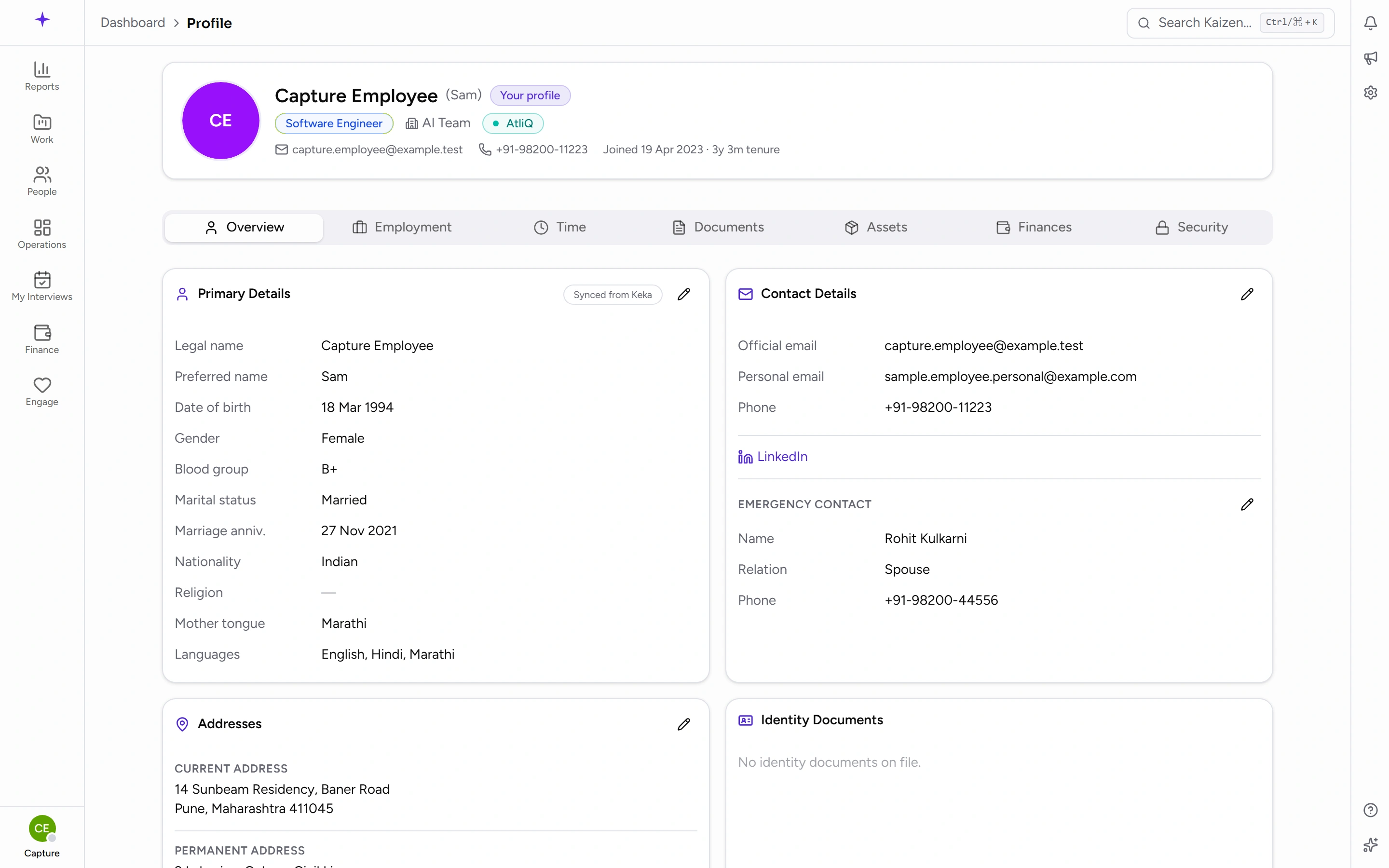
The tabs are:
- Overview — your personal details.
- Employment — role, department, reporting line, and your career history here.
- Time — your attendance.
- Documents — files held about you.
- Assets — equipment assigned to you.
- Finances — salary and payroll information.
- Security — your password. This one only appears on your own profile.
- Permissions — what your roles let you do.
Documents, Finances, and Permissions only appear if you're allowed to see them, so a colleague's profile will usually show fewer tabs than your own.
Common tasks
Change your profile photo
Your photo is the circle at the top of your profile. The circle is the button — click it and choose Upload a photo, or Change photo if you already have one. There's a small camera badge on the corner to show it can be clicked.
Pick a JPG, PNG or WebP image of 5 MB or less. It replaces the initials Kaizen shows for you until you set one, and it appears everywhere you do — task assignments, approvals, the directory, comments.
To go back to initials, click the circle again and choose Remove photo. You'll be asked to confirm.
You can only change your own photo. On a colleague's profile the circle is just a picture, unless your role lets you manage their record.
Record your skills
On the Overview tab there's a Skills card listing what you're recorded as being able to do. It matters more than it looks: skills are what people staff projects from, so an empty card means you won't be considered for work you could do.
Click Manage on the card to add a skill, set how strong you are at it, or take one off. You can only add from the list of skills your company keeps — if something you do isn't on it, ask whoever maintains that list to add it. No Manage button means your role doesn't allow it; ask your manager or HR to record the skill for you.
Each skill shows as a chip, and the card says how many are verified. Verifying is somebody else confirming the skill; you can record a skill yourself, but you can't verify your own. An unverified skill still counts and still shows.
There's a fuller page on skills too, covering the same list from your own side.
Update your details
The Overview tab is a set of cards, each edited and saved on its own:
- Primary Details
- Contact Details
- Addresses
- Identity Documents
- Statutory
- Bank Details
Edit the card you need and save it. Because each card saves separately, a half-finished change to one doesn't hold up another.
Where a field takes more than one answer — roles being the one you'll meet most — the box names what's picked rather than counting it, so you can read Basic, Salesperson +1 off the card without opening the list to find out what's in it.
Some fields aren't yours to change — your official name, job title, department and reporting line are managed by HR, and appear read-only. If one of those is wrong, ask HR rather than looking for an edit button that isn't there.
Add an identity document
Use the Identity Documents card on Overview to add one, edit it later, or remove it. This is for identity records like a PAN or passport number; general files belong under the Documents tab.
Keep your career history
The Employment tab holds your career timeline. Entries can be added, edited, and removed.
Find documents held about you
Open the Documents tab. You can upload a document and download any that are there.
Check your attendance
The Time tab shows your attendance, including a Regularize action if a day needs correcting. Attendance and regularization are covered properly on their own page.
Change your password
- Open your own profile and go to Security.
- Under Change Password, enter your Current password, then your New password, then Confirm new password.
- Save.
Kaizen signs in with Microsoft, so most people never need this. It exists for local accounts and as a way back in if single sign-on isn't available.
Under Account Security you'll see that two-factor authentication, session management and login history are noted as coming in a later cycle — they aren't available yet, so nothing is missing from your setup.
Good to know
- Notification settings are not on your profile. They live with notifications, where each type can be switched on or off for in-app and email separately.
- There's no personal timezone or date-format setting — dates follow the company's configured timezone for everyone.
- Permissions is read-only. It shows what your roles allow; changing them is an administrator's job.