

Working with tasks
Find, create, update, discuss, link, and close work items — from the Tasks list, a project's backlog or board, or a task's own page.
What you can do here
- Create work items in any project you belong to, and assign them to a teammate.
- Change almost any detail — status, priority, assignee, label, dates, hours — straight from the list, without opening anything.
- Open a task in a side panel for a quick look, or on its own page for the full picture.
- Move items through your project's workflow states, by dragging on a board or changing the status anywhere it appears.
- Break a task into subtasks and tick them off.
- Record that one task is blocked by, blocks, or is related to another.
- Discuss a task in comments, mention a teammate, and read the full history of who changed what.
- Share a task by copying its link, or copy the whole task to start a similar one.
- Update or delete many items at once.
- Filter and search across every project, and save the way you like the list so it comes back that way.
Where your work lives
The same tasks show up in three places. Which one you use depends on whether you are thinking about your work or about a project's work.
The Tasks list
Tasks in the sidebar is the cross-project view: every item you're allowed to see, from every project, in one list.
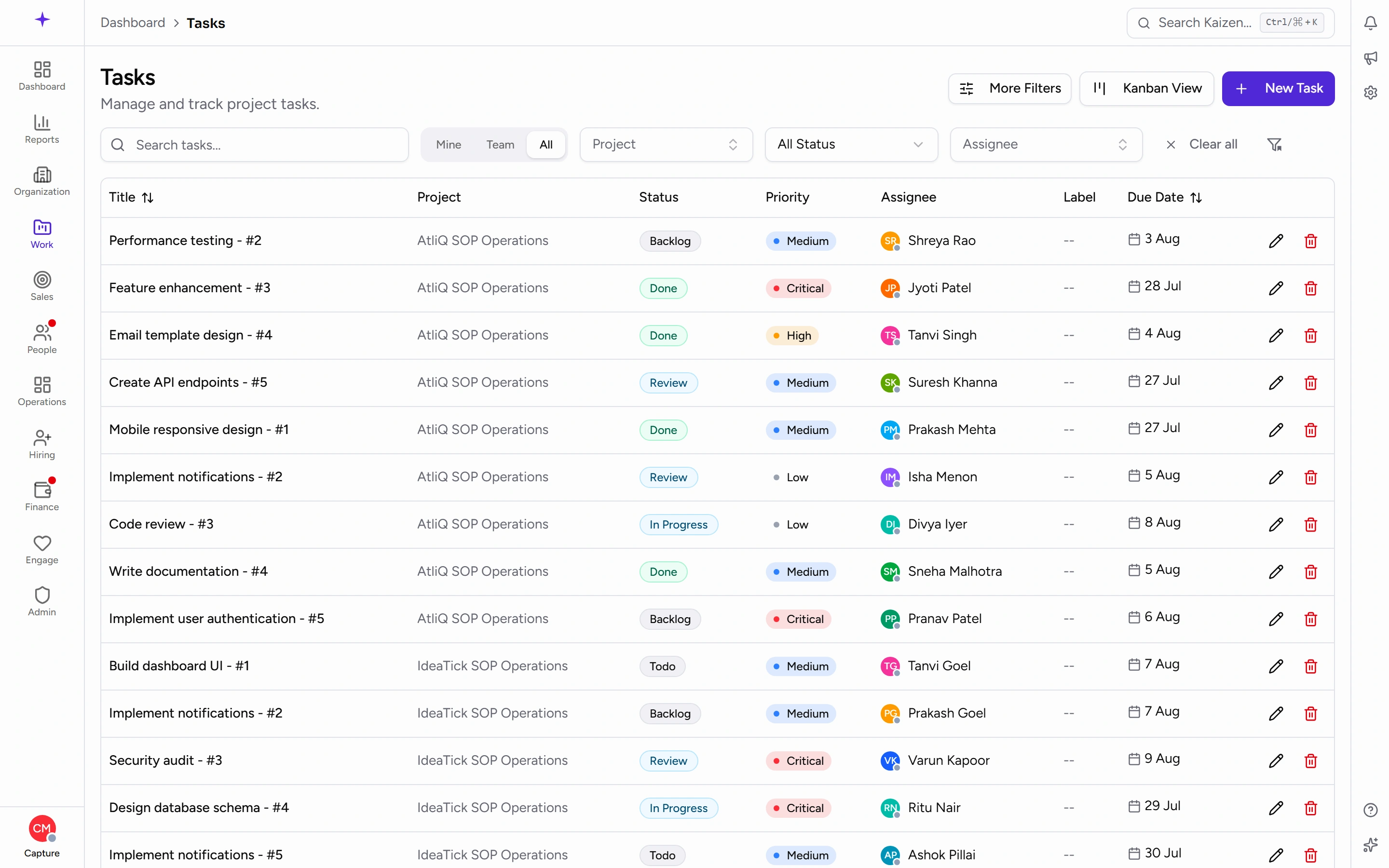
Each row shows the Title (with the project tag beside it, if the task has one), Project, Status, Priority, Assignee, Label, and Due Date. Title and Due Date can be sorted by clicking the column heading. The project name is a link — it opens that project in a new tab.
At the top right are More Filters, Kanban View, and New Task.
If you're allowed to see other people's work, a Scope switch appears with Mine, Team, and All. The list opens on Mine, so if it looks emptier than you expected, that's usually why.
A project's backlog and board
Open a project and its work sits behind two of its tabs:
- Backlog — every item grouped by sprint, as a list. This is where you tick several items and use the bulk actions.
- Board — the sprint as a kanban board, one column per workflow state.
Use these when you're planning or running a project, rather than working through your own queue.
Kanban View
Kanban View, from the Tasks list, gives you the same board treatment across projects — a Kanban Board with one column per workflow state, filtered however you like. It carries your filters over when you switch to it.
Common tasks
Create a task
- Open Tasks in the sidebar and click New Task.
- Choose the Project. This one is required, and it decides which sprints you can pick — the Sprint box stays disabled and reads Select a project first until you've chosen one.
- Enter a Title. This is the only other required field.
- Fill in as much of the rest as you know: Description, Assignee, Status (starts at the first state of that project's workflow), Priority (starts at Medium), Label (Feature, Bug, Improvement, or Chore), Start Date, Due Date, and Estimated Hours.
- If this task belongs under another one, put the parent's task number in Parent Task.
- Click Create Task. You land on the new task's own page, where everything can still be changed.
Add a task quickly, without the form
If you just want the title down and will fill in the rest later:
-
On a Board — or on Kanban View — click Add task at the bottom of a column. Type the title and press Enter. The task is created in that column's state. Press Escape to back out.
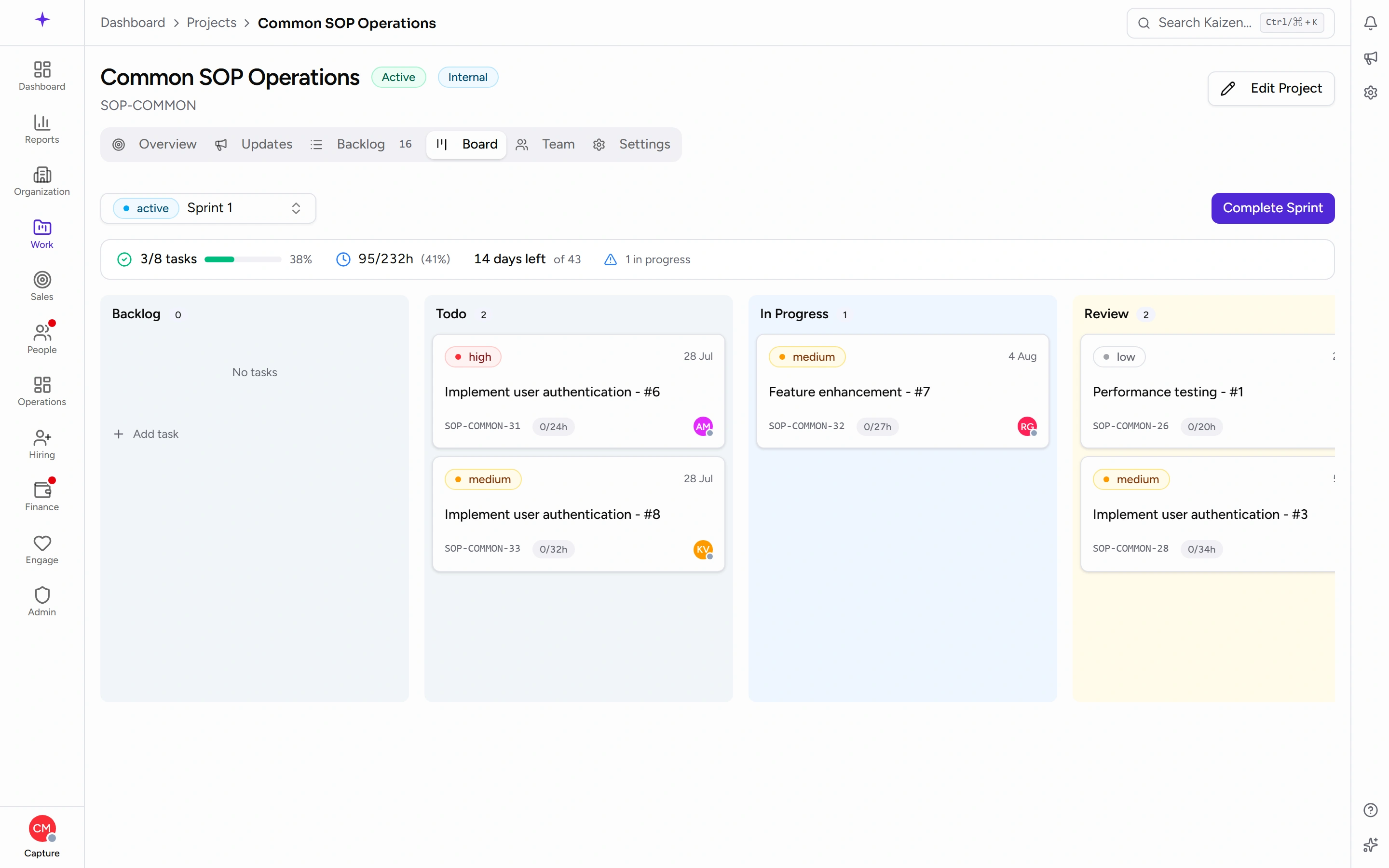
ScreenshotThe Add task button on a project board -
On a project's Backlog tab, use Create issue at the bottom of a sprint, then answer What needs to be done? and press Enter. Escape backs out here too.
Both create the task with just a title, in the sprint or column you used. Everything else can be added afterwards.
Open a task
You have two depths, and it's worth knowing the difference:
-
Click the row in the Tasks list to open the detail panel — a side panel with Details, Subtasks, and Activity tabs. Good for a quick check or a small edit without losing your place in the list.
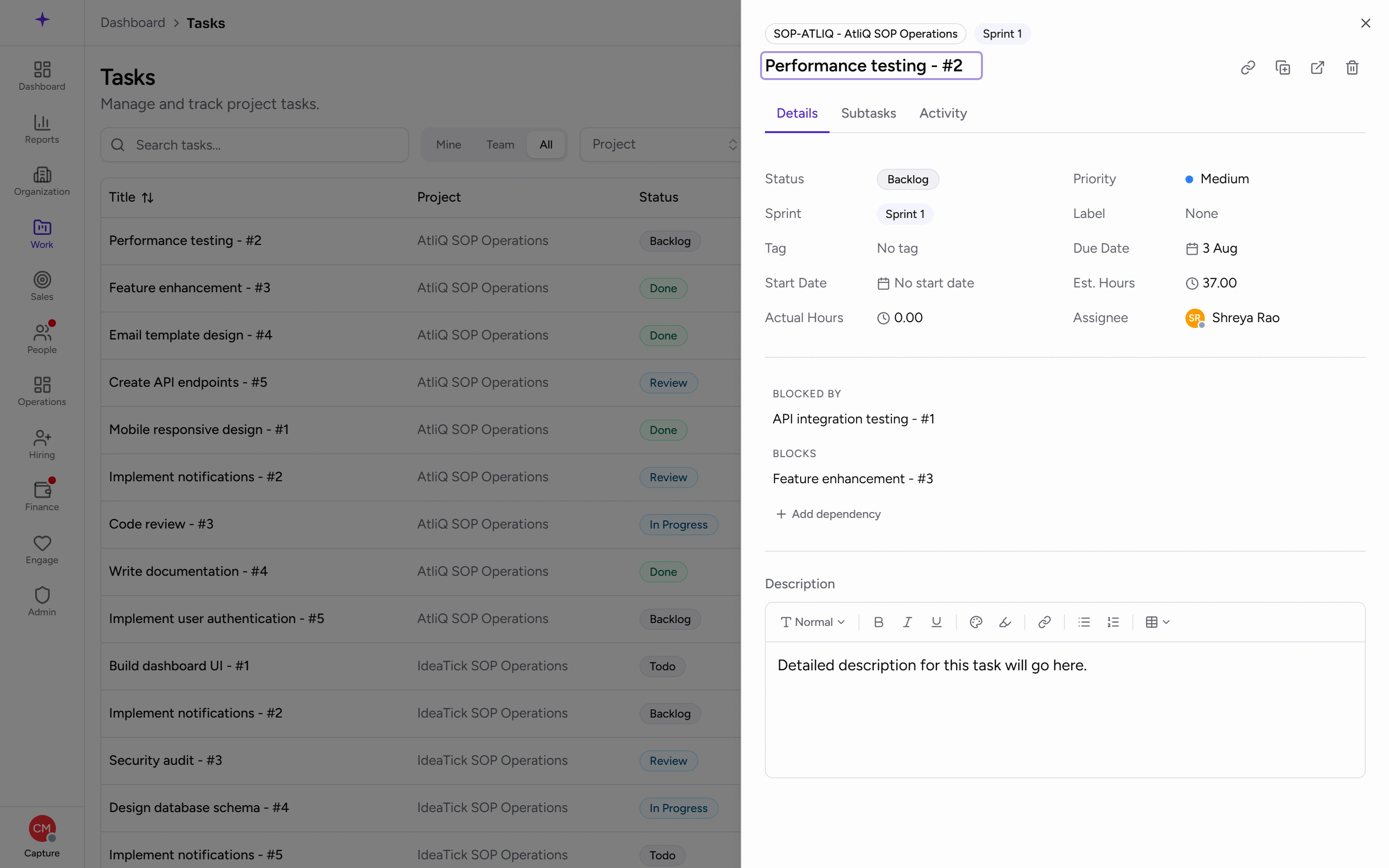
ScreenshotThe task detail panel that opens when you click a row -
Click the pencil in the row, or the Open full page icon in the panel, for the task's own page — the full picture, with the description, subtasks, dependencies, and the whole activity feed side by side.
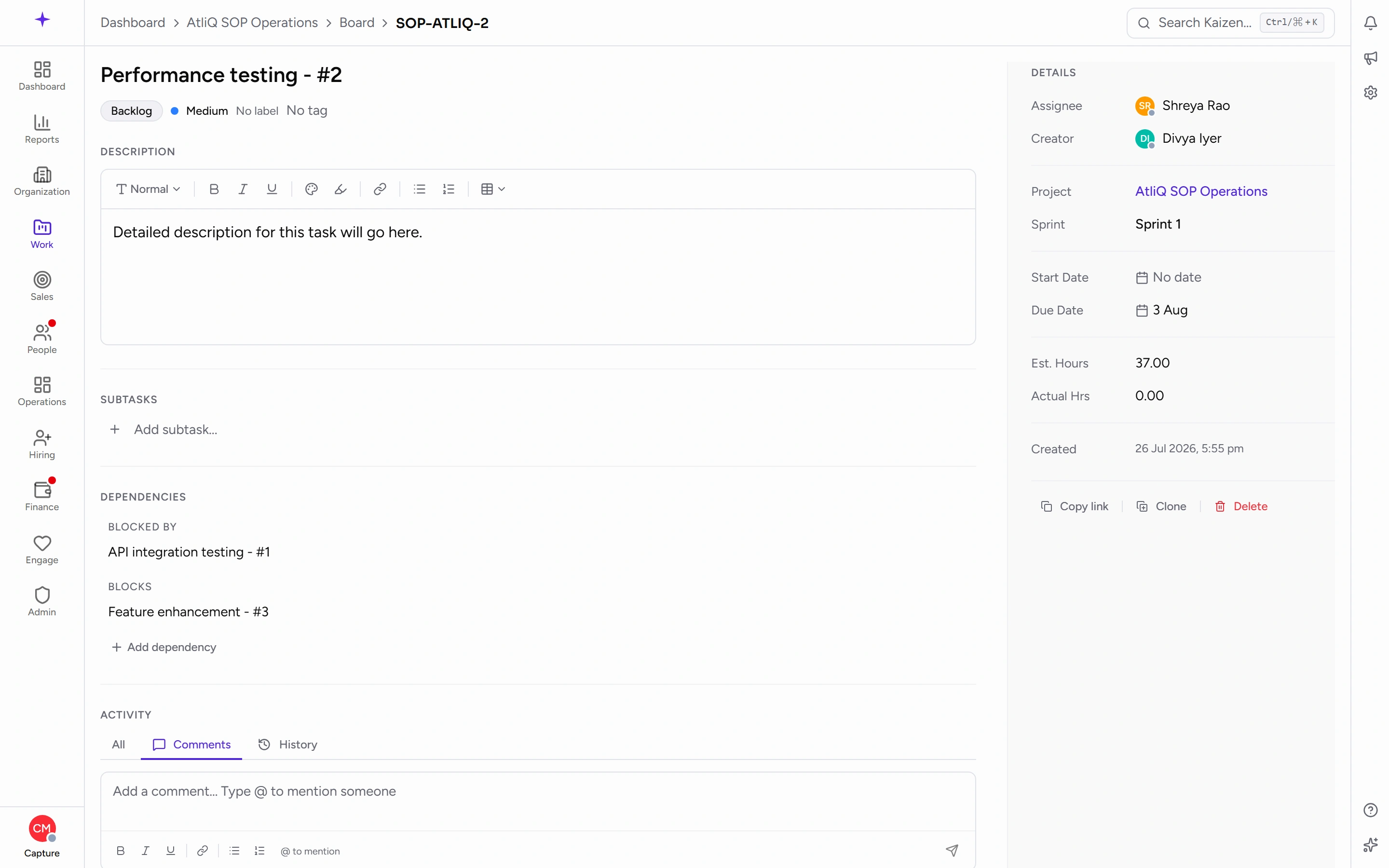
ScreenshotA task's own page, with details, subtasks, dependencies, and activity
There's no separate edit form. The pencil takes you to the task itself, and you edit in place.
Change a task's details
Almost everything is edited where you're already looking — click the value, change it, and it saves.
- From the list, without opening anything: Status, Priority, Assignee, Label, and Due Date are all editable in the row. This is the fastest way to work through a batch of small changes.
- From the detail panel or the task's page: the same fields, plus the Title and the project tag.
- On the task's page only, in the Details panel down the right: Assignee, Sprint, Start Date, Due Date, Est. Hours, and Actual Hrs. Creator, Project, and Created are shown for reference and can't be edited.
- The Description is a rich-text editor and saves by itself a moment after you stop typing — there's no save button to look for.
Move a task through its workflow
- On a Board or on Kanban View, drag the card to the column you want. The task's status becomes that column's state.
- Or change Status anywhere it appears — in a list row, in the detail panel, or on the task's page.
The states come from the project's own workflow, so what you see may differ between projects. Kaizen starts you off with Backlog, Todo, In Progress, Review, Done and Cancelled, but your company can rename those or add its own, which is covered on the workflows page. Whatever the workflow says, the board draws a column for it and every status picker offers it.
Break a task into subtasks
- Open the task's page, or the Subtasks tab of the detail panel.
- Type into Add subtask… and press Enter. Repeat for as many as you need.
- Tick a subtask's checkbox to mark it complete, and untick it to reopen it.
- Click a subtask to open it — subtasks are full tasks in their own right, with their own assignee, dates, and comments.
A task opened from under a parent shows a Parent Task link near the top, so you can get back up.
Link tasks that depend on each other
- Find Dependencies — on the task's page, or on the Details tab of the detail panel.
- Click Add dependency and choose the Dependency type — Blocked by, Blocks, or Related.
- Search for the other task by name in Search tasks… and pick it.
The links show up on both tasks, grouped under Blocked by and Blocks, so the other task's owner sees the relationship too. Remove a link with the small x beside it.
Discuss a task, and mention someone
- Open the Activity section on the task's page, or the Activity tab in the detail panel.
- Type in the comment box. To pull someone in, type @ and pick their name — they get a notification.
- Post the comment.
Your own comments can be changed or removed afterwards using the Edit and Delete icons on the comment.
The feed has three views: All, Comments, and History. History is the audit trail — every field change, who made it, and when. If you're trying to work out who moved something or when a due date slipped, that's where to look.
Share a task with a link
Click Copy link on the task's page, or the link icon in the detail panel. You'll see Link copied! and can paste the address into a chat or an email. Anyone who opens it lands on that task, provided they're allowed to see it.
Copy a task
Click Clone on the task's page, or the clone icon in the detail panel. You get a new task with the same details, which you can then edit. Handy for work that recurs with small variations — and if it recurs on a schedule, look at task templates instead.
Update several tasks at once
-
Open a project's Backlog tab and hover a row — a checkbox appears on the left, next to the drag handle.
-
Tick it, then tick any others. A bar appears at the bottom showing how many are selected.
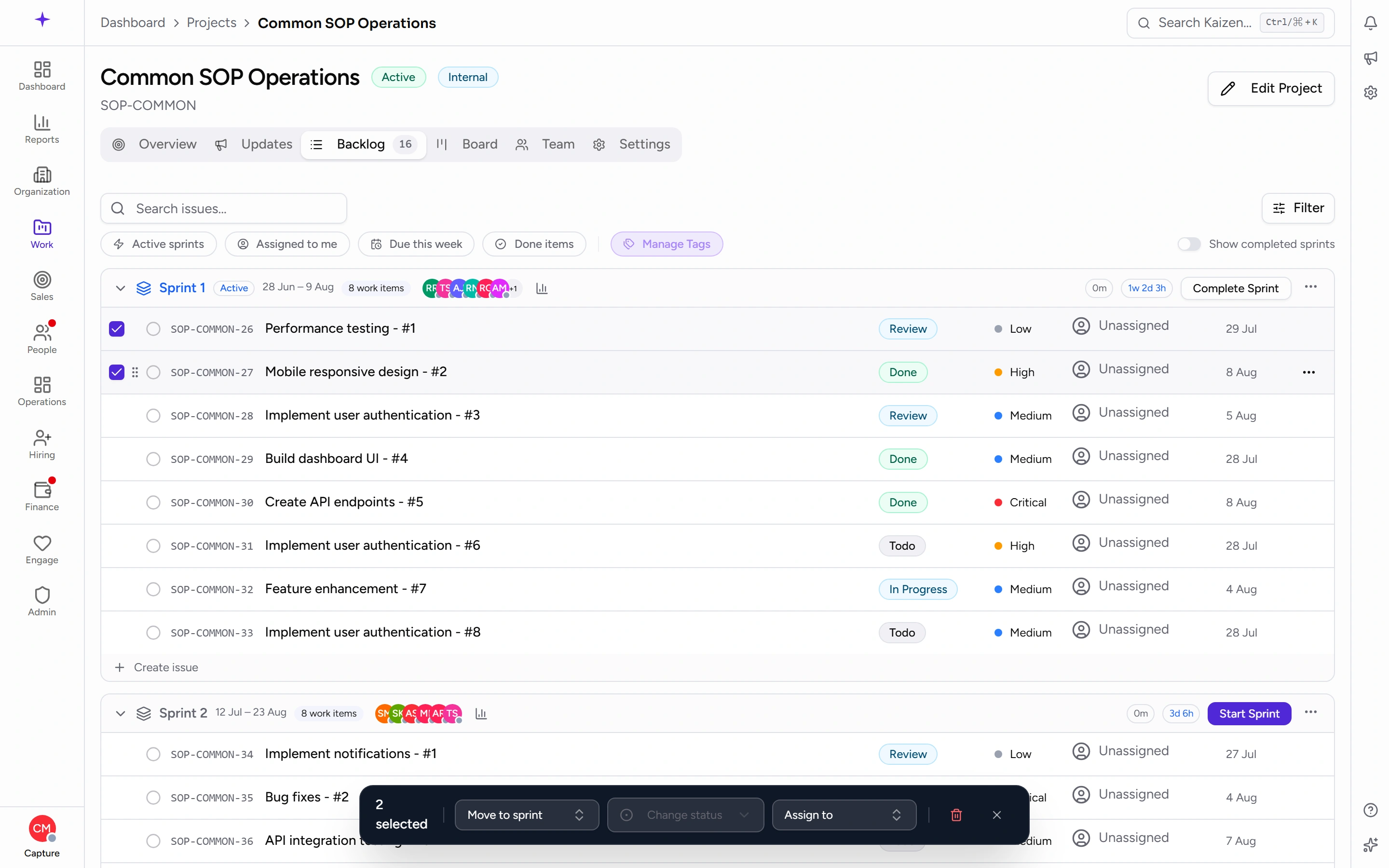
ScreenshotThe bulk-action bar after selecting two work items -
Choose Move to sprint, Change status, or Assign to — the change applies to everything selected.
-
To remove them all, use the bin. You'll be asked to confirm first, and it can't be undone.
-
The x clears your selection without changing anything.
Delete a task
- From the list: click the bin in the row.
- From the task: click Delete on its page, or the bin icon in the detail panel.
Either way you'll get a Delete Task prompt naming the task. Deleting can't be undone, so if you only want the task out of the way, setting its status to Cancelled is usually the better move.
Finding a task again
Narrow the list
- Type in Search tasks... to match on the title.
- Use the filters beside it for Project, Status, and Assignee, and the Scope switch for Mine, Team, or All.
- Click More Filters for the rest: Business Unit, Department, Priority, Label, Due Date Range, and Created Date Range. The button shows a count of how many of these are on, so you can tell at a glance that something is still filtered.
- Clear all resets everything back to the full list.
On a project's Backlog tab the equivalents are Search issues..., a Filter panel, and four one-click filters: Active sprints, Assigned to me, Due this week, and Done items.
Save the way you like the list
Once the list is filtered and sorted how you want it, click the bookmark icon — Save current filters as default. Next time you open Tasks, it comes back that way. Click it again to clear the saved view and go back to starting fresh. Kanban View saves its own view separately.
At the bottom, Per page controls how many rows you see at once.
Good to know
- What you can do depends on your permissions. If the pencil, the bin, or New Task isn't there, you don't have that permission — ask whoever administers Kaizen for your team.
- The list opens on Mine, and defaults to your own business unit. An unexpectedly short list is nearly always one of those two, not missing data.
- Est. Hours and Actual Hrs are both typed in by hand. Logging your time does not fill Actual Hrs in for you — time is logged against a project, not against a task, so if you want this figure to mean something, someone has to keep it up to date.