

Projects
Find a project, read where it stands, run its sprints and board, and manage who is on it.
What you can do here
- Find any project you're allowed to see, filtered by status, type, business unit, or whose it is.
- Read a project's health at a glance — tasks done, hours used against budget, sprint timeline.
- Work its backlog and board, and run its sprints from planning through to completion.
- Manage who's on the team and what each person does.
- Post delivery updates for the people watching from outside.
- Keep the project's description, remarks, and useful links in one place.
Finding a project
Projects in the sidebar lists everything you can see. Each row shows the Code, Name, Type, Status, Business Unit, PM, how many Sprints it has, and Hours.
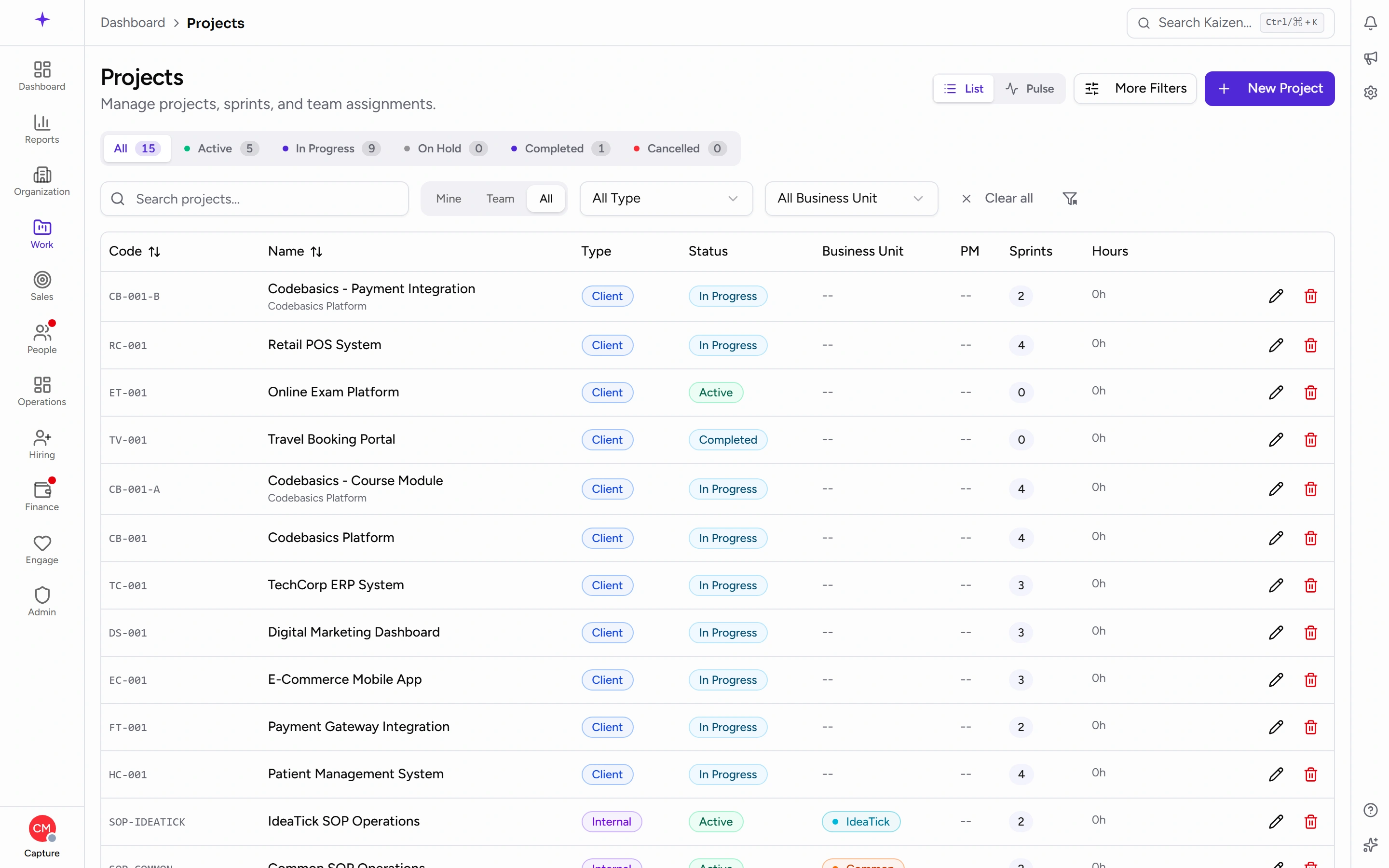
Along the top is a row of status buttons — All first, then one per status, each with a count — so you can see at a glance how the portfolio is spread. Beside them are filters for Scope, Type (Client, Internal, Meeting, Learning, Event) and Business Unit.
Two views sit at the top right: List, as described here, and Pulse, a health-oriented rollup across the portfolio.
A project can sit under another — a sub-project shows its parent's name beneath its own, and the parent's overview carries a sub-projects section. Useful when one engagement is delivered as several streams.
A project's status is one of six: Active, In Progress, Maintenance, On Hold, Completed and Cancelled. Unlike the statuses on a task — which come from the project's own workflow and differ from one project to the next — this list is the same everywhere in Kaizen.
Three of them mean the project is still running: Active, In Progress and Maintenance. That is the set that accepts time logs, and the set Kaizen counts as work in progress. Maintenance is for a project whose active development is finished but which is still looked after, so occasional work still arrives against it.
New Project sits at the top right if you're allowed to create one, and each row has a pencil to edit.
Inside a project
A project opens on Overview and has these tabs:
- Overview — the summary.
- Updates — delivery updates.
- Backlog — everything grouped by sprint, as a list.
- Board — the sprint as a kanban board.
- Team — who's on it.
- Settings — the workflow, if you're allowed to change it.
Overview
Across the top: how many Tasks there are, the percentage Complete, and Hours used. Below that sit the Description, Remarks, Details, and Links — a place to keep the things people keep asking for, like the staging URL or the design file. Add one with a Title and a URL.
If work has stopped, a Project Paused banner appears here.
Common tasks
Create a project
- Open Projects and click New Project.
- Fill in the details, and save. The pencil on the list row reopens the same form later.
Work the backlog and board
The Backlog tab lists every item grouped by sprint; the Board tab shows the current sprint as columns. Creating, editing and moving the work itself is covered in working with tasks — that page goes through the list, the detail panel, subtasks, dependencies and bulk actions.
Create a sprint
- Open the Backlog tab.
- Start a new sprint and fill in the Create Sprint dialog: a Name (required — for example Sprint 1), an optional Goal answering "what is the objective of this sprint?", and a required Start date and End date.
- Save. The sprint appears as its own group in the backlog, ready for you to drag work into.
Change or close a sprint
- Edit Sprint changes the name, goal, dates, and Status — for example from Planning onwards.
- Complete Sprint closes it. Anything unfinished has to go somewhere, so you're asked to pick a destination — the Backlog, or another sprint. Nothing is silently dropped.
- A sprint can also be deleted outright, with a Delete sprint confirmation.
You can also check how heavily loaded a sprint is before committing to it, and manage the project's tags from the same tab.
Manage the team
- Open the Team tab.
- Add Team Member, pick the User, and give them a role on the project.
- Existing members can have their role changed, or be removed.
Project membership is what puts a project in someone's timesheet picker, so if a colleague says they can't log time to your project, this is usually why.
Post a delivery update
Open the Updates tab and add a Delivery Update. These are for the people who want to know how it's going without reading the board.
Good to know
- Hours on the list is time logged against the project by everyone, rolled up. It comes from time logs, so it's only as good as people's timesheets.
- If a project has disappeared from your list, you've most likely been removed from its team, or it's moved to a status you're currently filtering out — check All.
- Type matters for reporting: Client work is what gets billed; Internal, Meeting, Learning and Event are how non-billable time is accounted for.