

Using your client portal
For clients — sign in without a password, see the projects being delivered for you, and check the invoices you've been sent.
What you can do here
- Sign in to your portal without ever setting a password.
- See the projects being delivered for you and how far along they are.
- See the invoices you've been sent, and what's still outstanding.
This page is for clients. If you're reading it because you work at the company that supplies you, you want the client portal page instead — that one covers switching a client's access on and off.
Your portal is a small, separate website. It isn't the system your suppliers work in, and nothing you do there changes anything on their side. It shows you your own projects and your own invoices, and that's deliberately all it does.
Signing in
There is no password, and you were never sent one.
- Open the portal address you were given and you'll land on Sign in to your portal.
- Type your Email address — the one your supplier has on record for you — and choose Email me a sign-in link.
- Check your inbox. Open the link, and you're in.
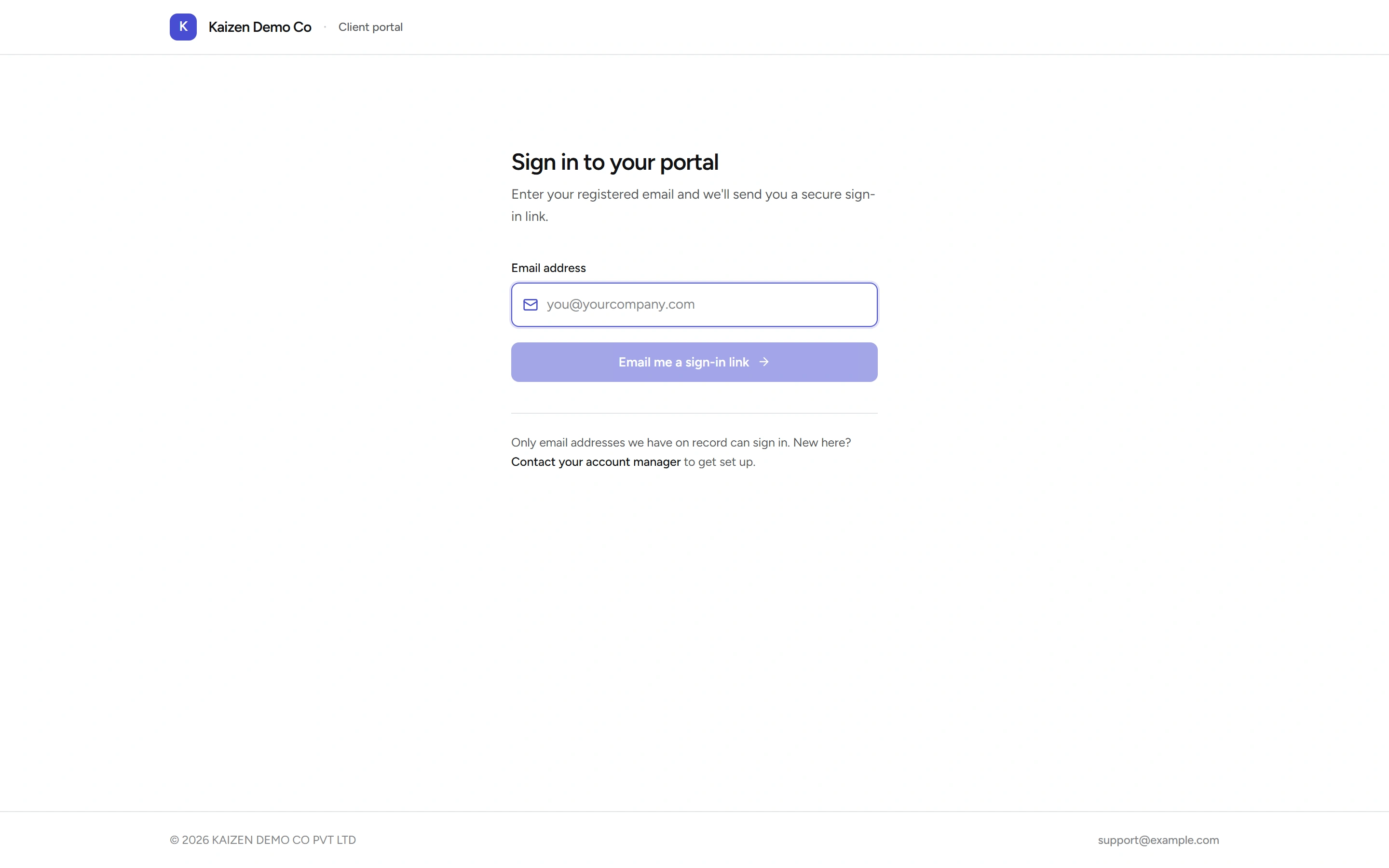
The page may ask you to confirm you're not a robot before it will send the link. That's an ordinary bot check and it usually passes on its own.
Two things about that link are worth knowing before they surprise you:
- It expires after 15 minutes.
- It works once. Opening it a second time won't sign you in again.
Neither is a fault, and neither needs anyone's help to fix — go back to the sign-in page and ask for another link. They're unlimited.
Only addresses your supplier already holds can sign in — there's no signing up. The confirmation you see after asking always says the same thing, whether or not the address is one we recognise. That's on purpose: it means nobody can use the sign-in page to find out who your supplier's clients are. So if no email arrives, the likeliest explanation is that the address on file is a different one — a colleague's, or an older company address. Ask your usual contact which address they hold.
Open the link in the same browser you asked from, and try not to let an email app "preview" it first. A link opened somewhere else is the single most common reason a sign-in doesn't stick.
What you'll see
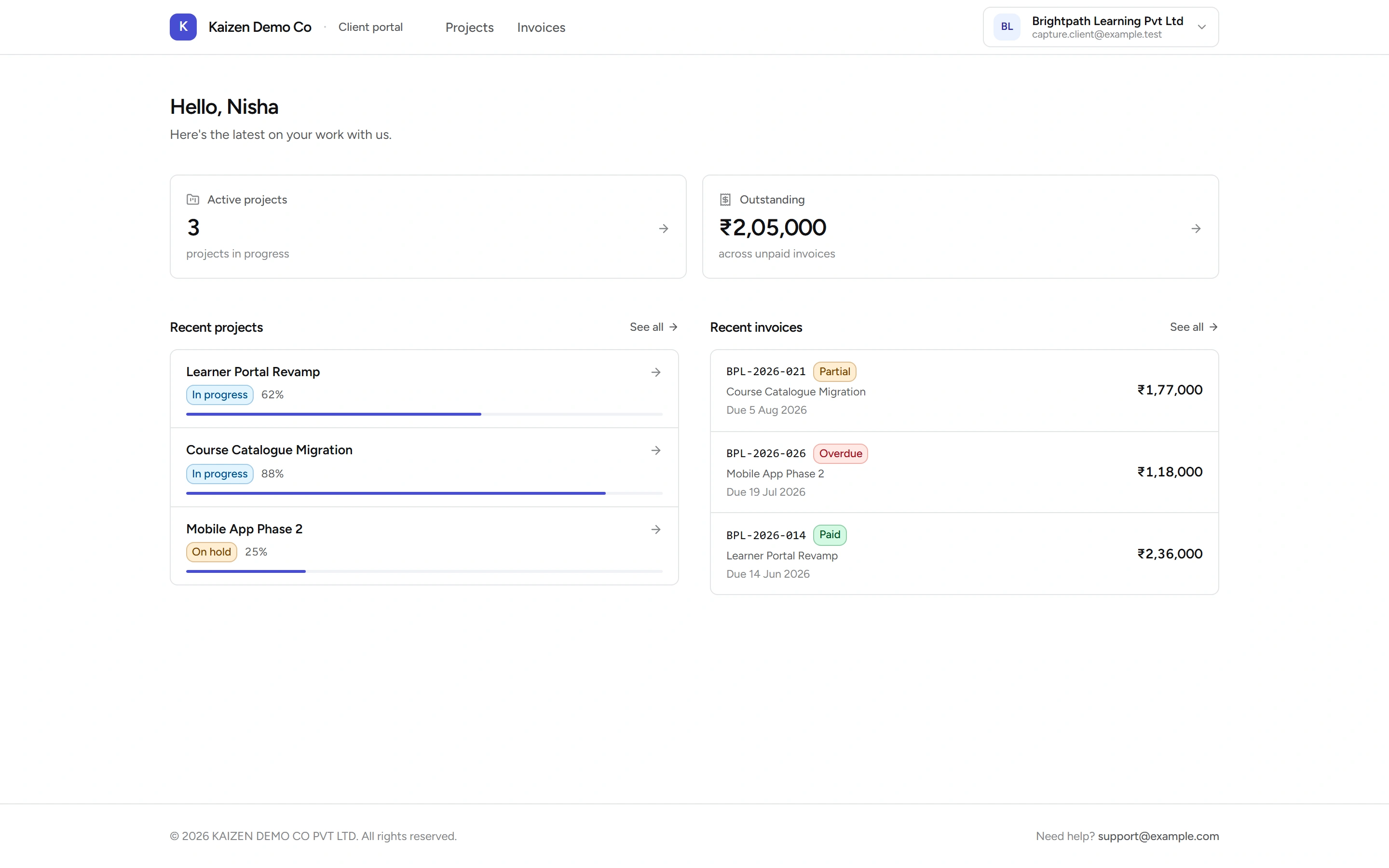
Your portal home shows two figures at the top — Active projects and Outstanding — followed by your most recent projects and invoices. Projects and Invoices in the top bar open the full lists.
Projects
Every project your supplier is running for you, newest activity first, with its status and a progress figure. Open one to see its description and its dates.
Work that has finished stays visible. Work that was cancelled or never started doesn't appear at all.
Invoices
Every invoice that has actually been sent to you — with its number, date, due date, amount and currency, and whether it's outstanding, part-paid, overdue or paid. Open one for the detail behind it, including which project it relates to.
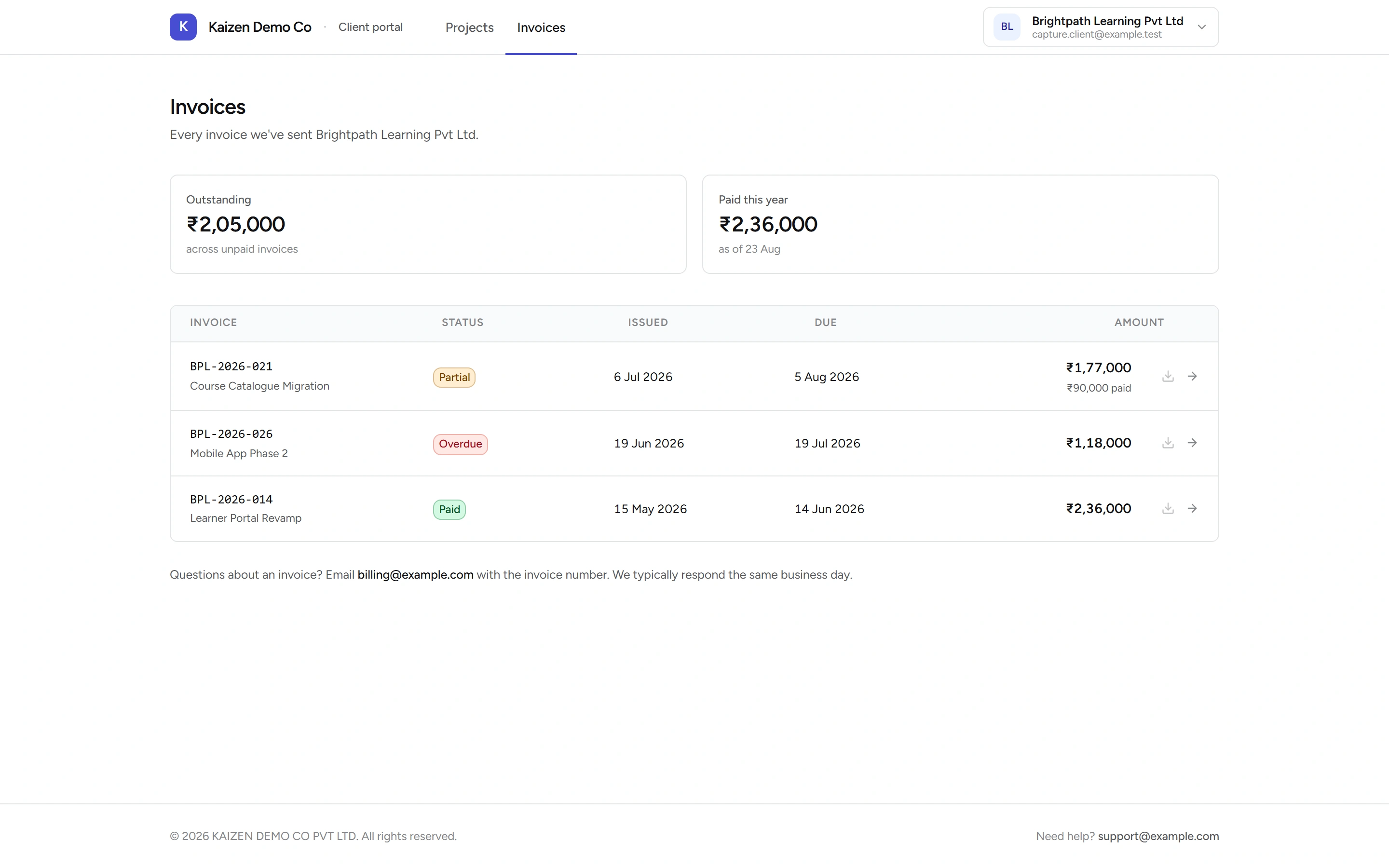
The Invoices page repeats Outstanding and adds Paid this year.
Outstanding is simply what's left across everything unpaid: the full amount of anything sent or overdue, plus the unpaid remainder of anything part-paid.
The download icon beside each invoice isn't working yet. It's greyed out on purpose while PDF downloads are being finished. Until then, email the billing address at the foot of the list with the invoice number and you'll be sent a copy — usually the same working day.
Invoices that are still being drafted aren't here. If your supplier is preparing something, you'll see it once they send it.
What the portal doesn't do
It's a window, not a workspace. There is nothing to fill in, approve, upload or comment on — and no way to pay through it. Payment goes wherever it went before; the portal only tells you what's owed.
You see only your own projects and invoices. No other client's records exist as far as your portal is concerned, and neither do your supplier's internal systems.
If something looks wrong
- A project or invoice you expected isn't there. Most often it hasn't been sent or started yet. Ask your usual contact.
- An invoice figure looks wrong. The portal shows the invoice exactly as it stands. If it reads wrong, it is wrong — ask for it to be corrected rather than working around it.
- You're signed out sooner than you expected. Sign in again with a fresh link. There's nothing to reset.
- Sign-in stops working entirely. Your access can be switched off deliberately — during a billing dispute, or when a relationship ends. If fresh links stop letting you in, that's a conversation with your contact, not a technical fault.
The sign-in page and the foot of every portal page carry a contact address. That's the fastest route to a person.
Good to know
- Nothing to install, nothing to remember. No password, no account to create, no app. The email link is the whole of it.
- Bookmark the portal address, not the sign-in link. The link dies after use; the address doesn't.
- Sign out from the menu in the top-right when you're on a shared computer. Otherwise you can simply close the tab.